This chapter describes the use of X-AUTOFIT to generate map masks and bones and their use in de novo Ca tracing. This is followed by sections on automated or semi-automated sequence assignment and building all-atom representations from a Ca trace.
X-AUTOFIT allows you to define solvent boundaries using either coordinate information or bones (that is, map), information. The mask can also be imported from an external file, and it is possible to read all forms of O format masks into X-AUTOFIT and X-POWERFIT. A program $HYD_MAP | mbkall allows the conversion from other formats (i.e., Xsight, CCP4) to an O compressed format file for reading into the X-applications. The masks generated and edited within X-AUTOFIT can be saved as an O compressed format file.
Not only does X-AUTOFIT allow the calculation of map masks, it can use the map mask as an integral part of the de-novo Ca tracing process. The map mask can be used both as a visual boundary, and as a calculation boundary in X-AUTOFIT and X-POWERFIT, removing the problem of building structure in symmetry related molecules.
The mask size is defined by the current volume of map present as defined by X-AUTOFIT | Options | Map-radius. This allows a smaller mask to be defined from a map that may cover a whole unit cell. If the mask must fill the same volume as the map, set the map radius to some very large value. The mask will be generated with the same unit cell parameters as those of the map.
If the mask is to be generated from bones, these must be calculated first (X-AUTOFIT | Bones | Calculate-bones), but bones are not required for the calculation from atoms. (See the following section for an overview on the use of bones.) In both cases, the mask covers all selected bones/atoms, so use the atom selection tools to delete atoms not required for the mask. If the mask is to be generated from the bones, then use the X-AUTOFIT | Bones | Symmetry tool to indicate where overlap of bones will produce clash by symmetry, and edit the bones accordingly.
The initial bones parameterization is optimized for Ca-tracing. These parameters are sensible for the global editing of the bones for masks, but it may be helpful to increase the bones trim level to a larger value as this will remove the smaller unwanted fragments automatically. This is set with the Bones | Change trim value tool which will open a dialog box. Set the bones trim value to 5-10 depending on the map. Turn on the bones with Bones | Bones on-off.
The bones will now need to be edited to generate a single volume of bones that represents a single connected asymmetry unit. This is usually easier with the map turned off using the map management table. Initially, the quickest method of editing the bones is to remove the largest fragments of bones using Bones | Delete fragments. This tool allows you to pick a bones point resulting in the deletion of the entire fragment connected to the bones point picked. At any stage during the editing, deletion of the required volume can be undone using Bones | Undo last delete. Only the large fragments should be deleted initially as the smaller fragments can be removed with another tool more efficiently.
If any large fragment of unwanted bones is connected to the main volume required for the mask, then it is possible to cut this off using Bones | delete 1 section. The unwanted fragment can then be removed.
The display should now consist of the main volume of bones, plus many smaller fragments of bones. Bones | delete all fragments allows you to delete smaller fragments in a single go. This will remove all the fragments of bones that contain less than 2% of the total number of bones points remaining on the display. If a significant number of fragments remain, then a second use of this tool will move fragments less than 4% of the total number of bones point. Each use of this tool will double the deletion threshold and thus remove progressively larger regions of bones. Bones | ...Reset delete all resets the threshold. Bones | delete all fragments will miss small fragments of bones containing no main chain points, so these will need to be delete with the Bones | delete fragments tool.
Bones | Calc bones symmetry allows you to calculate the bones symmetry and study the bones overlap. Where symmetry bones overlaps with real bones (and later with the mask), the bones will need further editing.
After editing the bones, use the tool Mask | Calc mask from bones to generate a map mask. The progress of the calculation is indicated on the message line of the molecular display. The algorithm uses a radial value, which, by default, has a value of 4 Å, that extends the mask beyond the bones. The radial value can be changed with the tool Mask | Mask delete radius. On completion of the calculation the mask will appear as a white dot surface.
It is also possible to generate a mask from coordinates. First, open the MSF file (or multiple files) for the coordinates, and then use the mask tool Mask | Calc. mask from coord to generate the mask around these coordinates.
The voids in the mask can be removed with the Mask | check for voids option and the mask extent adjusted using Mask | Add mask at pointer and Mask | Del mask at pointer. Save the mask, when complete, with Mask | Save mask to file.
At this point the mask represents a bound region that can be used in subsequent calculations. The tool Bones | Mask bones by mask, when active, will delete all bones pointers outside the mask, and hence any calculation based on these bones will be bounded to the molecular mask. The display will reflect this, and any subsequent changing of the view, map radius and parameterization will result in a new set of bones that lie only inside the mask. Adjustment of the mask using the mask editing tools will change the bounding mask in subsequence calculations.
The solvent mask is displayed as a dot surface rather than a net, to reduce the graphics processing. This also has the advantage that generating this dot surface is 10-100 times faster than net contouring, it allows almost interactive recalculation of the surface as you make changes. The number of dots in the surface can be changed; by default, all points on the surface are shown. If the graphics on your system are not fast, or if the surface is particularly large, then the surface dot density can be reduced (X-AUTOFIT | Mask | reduce-resolution) in ten steps. The reduction in number of points follows the numerical progression 1/2, 1/3, 1/4, ... 1/10. Reducing the dot density of the surfaces increases the refresh rate of the surface during manipulation of the image. The number of dots can be increased again using the X-AUTOFIT | Mask | increase-resolution tool.
The Bones palette is used to set up the skeletonization process. The skeleton can be used with the map mask calculations and Ca-tracing. There are very few tools accessible under the CA Build and X-POWERFIT palettes when the bones are inactive, as the building process requires the presence of the bones. The bones are necessary for the map masking if the mask is to be generated from the bones, and hence from the map information.
The default values for the bones parameterization are reasonable for 2fo-fc maps (start = 1.2 s), but you may need to change the start value to increase or decrease the connectivity of the bones. The following values should be used as a guide for different maps.
The connectivity of the bones and the quality of the map can be judged quantitatively using the X-AUTOFIT | Bones | Map quality from bones option.
The skeletonization process used in X-AUTOFIT is a three-dimensional data reduction algorithm that removes points from the electron density map. This process follows four basic steps, repeating steps 2 through 4 until no more points can be removed from the map:
1. All points below a threshold are removed.
2. Only edge points are removed from the density.
3. Electron density connectivity is not broken.
4. Electron density chain length is maintained.
Mathematically this process is simple to implement, but it is difficult to make fast enough for an interactive display. The original four rules of J. Greer1 were modified slightly, and the algorithm implemented from scratch to incorporate improvements in the calculation and memory usage.
The quality of any electron density map changes with location. Generally, good density can be found in the core, and marginal density in external loops. The perfect map of one molecule contains only one bones tree with only one pathway from the C-terminus to the N-terminus (except for disulfides).
Information about the quality of a map can be determined by the level of over-connectivity measured as false links and the extent of under-connectivity measured as broken density.
Select Map quality on the X-AUTOFIT:X-BUILD/bones palette. When you make this selection, X-AUTOFIT calculates the number of connected bones trees, the size of each tree as a percent of total bones points, and the number of false links. A tree is a set of branching bones segments.
The information generated when you select Map quality is listed in the QUANTA Textport. The list of trees is sorted by size. Generally, a good map has a few large trees and the remaining trees are small (containing less than one percent of the total bones points). A poor quality map has many moderately sized trees.
A good map also has fewer than 50 false links (a 2fo-fc map has fewer than 100 false links because aromatic rings appear as false links). A poor map may have hundreds or thousands of false links.
Use the information about the quality of your map to make decisions about how to optimize it.
Generally, if the bones appear disconnected, decrease the bones start value, and if the bones appear as "spaghetti", increase the start values. The bones start value of 1.8 s is recommended for 3fo-2fc maps. It is recommended that the bones display be set to smooth bones as this makes the bones easier to interpret.
It is possible to use the tool X-POWERFIT | Find sec struct to determine the quality of several maps. This acts as an interpretive methods of map quality assessment. Refer to the Determining the secondary structure in the molecule.
To improve map quality, optimize the skeleton for your current map section by adjusting skeletonization parameters, by adjusting branch trimming parameters, by manually removing bones points from the skeleton, or by changing the type of bones point from main to side change or the reverse. You can make changes interactively, using map quality data to fine-tune the algorithm for a particular section of your map.
The Start parameter is a cutoff parameter that you can adjust. All density below the defined Start value is removed from an electron density map and ignored when a bones skeleton is generated.
Examine your map to determine how to adjust the Start parameter. If no connected bones are visible, or if they appear as single dots, the Start value needs to be decreased. If the bones appear as spaghetti, the Start value needs to be increased until individual segments become evident.
This parameter can be modified in two ways: by using either the
X-AUTOFIT dials or the tool X-AUTOFIT | Bones | Bones start value.
1. Click once on either side of the center line on the Start Value dial. The start value is automatically modified.
Each click fully recalculates the bones. Multiple clicks result in multiple recalculations. The Start Value is increased by clicking to the right and decreased by clicking to the left. The further to the left or right you click, the more the value changes.
2. Select X-AUTOFIT | Bones | Bones start value.
3. Select Change start value on the Bones palette. The Set up bones parameters dialog box is displayed.
4. Enter a value in the starting value data entry box. The minimum value is -10,000 and the maximum is 10,000.
5. Click OK. The dialog box is removed and the bones are recalculated. A new skeleton is displayed when the calculation is complete.
Branch trimming provides a way to clear short branches from the bones skeleton. Any branch of density less than or equal to the length of the trim parameter is deleted from the bones skeleton and takes no part in any calculation or display. Any single piece of bones longer than twice the length of the trim value is also deleted. The delete value can be varied from a minimum of 0 to a maximum of 50. The default value is 3. The higher the value, the more deletion will occur.
The sidechain detect level affects the number of bones that are assigned to sidechain status. Any branch of the bones skeleton with a value less than the sidechain detect value is assigned a sidechain type. Any trunk of bones that is part of a sidechain subtree structure is also assigned to the sidechain type if its length is less than the sidechain detect value and if the subtree depth is less than one half the sidechain detect value. This parameter can vary between a minimum of three and a maximum of fifty. The default value is eighteen. The higher the value, the more bones points assigned to the sidechain type.
1. Select Change trim parameters on the Bones setup palette. The Trim parameters dialog box is displayed.
2. Enter the values you want to use for the delete level and sidechain detect parameters.
3. Click OK. The dialog box is removed and bones are recalculated using the new values for the trim parameters.
If the bones are to be used with the mask calculations then it is usual to set a map radius (X-AUTOFIT | Options | Map-radius) that gives you a clear view of the entire molecular packing. If the map radius is set to a very large number (for example, 1000) then the entire map will be used to calculate the bones.
If a mask has been calculated, it can be used to automatically delimit any part of the map within all the map interpretation calculations. In general, it would be used to delimit a molecule that represents a single asymmetric unit.
Bones points are deleted as multiple points. The tool X-AUTOFIT | Bones | Delete-1-section deletes points that lie in a single chain extending either from a branch point or from a terminus to another branch point or terminus. The X-AUTOFIT | Bones | Delete-fragment tool deletes all points in a tree fragment that are connected to the point picked. The tool remains active until clicked again. When you delete a branch, the smoothing function changes so some branch points will move.
The tool X-AUTOFIT | Bones | Delete-all-fragments allows the deletion of all small fragments, where the threshold is incremented on every subsequent use of the tool.
Although you may delete a section from the bones skeleton, the electron density map is not altered. Any recalculation of bones (for example, through addition of a new contour level or moving to a new bones box) will override the deletion modifications you have made.
1. Select one of the delete tools on the X-AUTOFIT:X-BUILD palette. When you make this selection, the message prompt at the bottom of the molecule window instructs you to select a bones point using the mouse.
2. Click a point in the section of skeleton that you want to delete. The section, fragment or multiple fragments are deleted. You can undo your last selection by selecting Undo last on the X-AUTOFIT:X-BUILD palette.
You can change the type of a bones strand from sidechain to main chain or the reverse. A status change in a bones section is indicated by a color change for the strand. If you have sidechains hidden, when you change a main chain to a sidechain, the section seems to disappear.
Select the Main ´ side selection on the X-AUTOFIT:X-BUILD palette. The current strand of bones changes type and color. To undo this change, reapply the Main ´ side selection or use Undo last on the Bones palette.
The bones should be edited with the X-AUTOFIT | Bones | Delete-fragment option to leave only a single molecule/structure. If the bones symmetry is turned on (X-AUTOFIT | Bones | Symmetry-on), a reduced representation of the bones is generated by symmetry. Where symmetry-related bones overlap with the bones required for the mask, you must determine which real bones fragment that, when deleted, will remove the symmetry-related section. Note the symmetry-related bones are not updated during the bones editing, but can be refreshed by clicking on the X-AUTOFIT | Bones | Symmetry-on tool again. The symmetry-related bones can be removed with the X-AUTOFIT | Bones | Symmetry-off tool. If the fragment of bone to delete is joined to some bones that must be saved, use the tool X-AUTOFIT | Bones | Delete-1- section to cut a link between the two parts of the bones. Once the bones have been edited so as to give no symmetry overlaps, a mask can be calculated.
The recommended map radius (X-AUTOFIT | Options | Map-radius) is approximately 9-12 Å for use with Ca-building. This radius allows quick changes in the bones start value and allows the display to be manipulated on less powerful graphical workstations. Also, you can change the start values for the bones calculation and get an almost immediate change in the bones when using this radius of data. The bones display is often updated when carrying out Ca-tracing (X-AUTOFIT | CA Build | Next bones box), recalculating the bones again from the map. Therefore, any editing of the bones is lost when the bones are recalculated. It is therefore recommended that rather than edit the bones when using them from Ca-tracing, the parameters for the auto generation and analysis of the bones be adjusted to give the most interpretable results. Use X-AUTOFIT | Bones | ChangeStart value to change the bones generation parameter; increasing this value will reduce the connectivity of the bones and vice versa.
To carry out Ca-tracing of density, bones must be active. Please read Using bones with Ca-tracing, in the preceding section. This overview assumes that the bones have been turned on with X-AUTOFIT | Bones | Calculate-bones and that required adjustments to the bones and trimming parameters have already been made. If there is no obvious starting place in the map for Ca-tracing, it is possible to use the tool X-AUTOFIT | Bones | Find nice area of map to search the entire electron density map for a region of electron density that may have meaningful electron density. This is performed by an algorithm that scans cubes of electron density to determine which volume of the map contains the most density above 1 sigma. The map then is centered at this location, and X-AUTOFIT calculates the bones for this region.
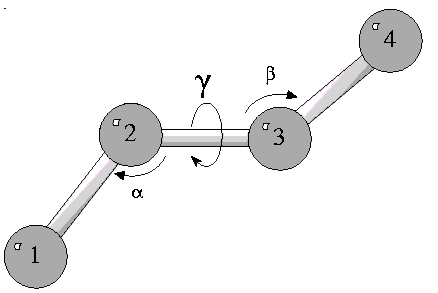
Alpha-carbon coordinates for a segment of a protein are built from a skeletonized electron density map using assisted (or smart) alpha-carbon building. X-AUTOFIT evaluates the skeleton and projects the most likely placement of each alpha carbon, determining the open (beta) angle and the torsion (gamma) angle of the alpha carbon with respect to the previous four alpha carbons. Central to this evaluation is the use of a pseudo-Ramachandran plot that defines the probabilities of specific alpha-carbon geometries.
1. Start an alpha-carbon segment by selecting New segment on the X-AUTOFIT:X-BUILD palette. The Pick Density palette is displayed.
2. Find a branch point on the bones skeleton that looks like a piece of main chain with a long sidechain. Remember that C=O looks like a short sidechain, but you want a Ca-R point. Click on this branch point.
A red cross appears on the picked location. This is the starting alpha carbon. If you are not satisfied with this point, simply click on another location on the bones skeleton.
3. When you are satisfied with the starting alpha carbon placement, choose Accept Point on the Pick Density palette. The palette is removed.
X-AUTOFIT recalculates a new box around this coordinate. The first alpha carbon position is fixed. The moving end of the segment (marked by a yellow line) represents the next alpha carbon, 3.8 Å from the first alpha carbon.
4. Position the next atom by one of several mechanisms:
Pick a point on the skeleton by clicking the bones (see "Positioning the next Ca atom" on page 62)
Ask the program to auto-fit the atom by selecting Next CA on the X-AUTOFIT | CA Build palette
Pick a point on the pseudo-Ramachandran plot (see "Using the pseudo-Ramachandran plot" on page 60)
Use the dials to set the angle (beta) and torsion (gamma)
Click X-AUTOFIT | CA Build | Guess next CA to see the different fitted Ca positions from the auto-fit routine.
5. Continue adding alpha carbons until you are in an un-interpretable part of the map or until you reach the edge of the bones box.
When you have more than four alpha carbons, the utility of the pseudo- Ramachandran plot becomes obvious. The current conformation of the last four alpha carbons is reported. The torsion angle (g) is along the y- axis, and the open angle (b) is along the x-axis. Double clicking on the plot sets g + b to the mouse position. These changes are reflected in the alpha-carbon chain displayed in the molecule window.
Guess next CA on the X-AUTOFIT:X-BUILD palette uses the plot to score different positions on the bones skeleton.
6. When the trace reaches the edge of the currently drawn map, select Next bones box on the X-AUTOFIT:X-BUILD palette to load a new bones box. The box centers on the current alpha carbon and draws a new skeleton and map.
7. If the current alpha carbon is misplaced, select Delete current CA on the X-AUTOFIT:X-BUILD palette. This deletes the current alpha carbon and makes the previous one active. This selection should also be used if the current Ca cannot be placed on the map.
Watch the plot and use it to try different solutions, especially when you reach patchy density with poor connectivity. If you have a good map, the program does most of the work.
With difficult maps, fitting the first few atoms is the most difficult. It requires trying Ca placements, then deleting them. You can also use the interactive properties of X-AUTOFIT to adjust and modify trim parameters as you work.
At any stage, you can reverse the growing chain and build in the opposite direction until both ends reach regions that cannot be interpreted.
Also, multiple segments of chain can be fitted to each piece of interpretable map and then joined into a single trace.
To add a further segment of Ca-trace use the tool X-AUTOFIT | CA Build | New segment again and a new segment of two Ca atoms will appear. The previous segment will be displayed in color 1 (pale green), and the new segment will be color 3 (red), and the current Ca atom will be color 4 (yellow).
The tool X-AUTOFIT | CA Build | Current res seg can be used to select the current Ca atom as the current atom. After you select this tool, X-AUTOFIT prompts you to pick a Ca atom. Picking a Ca atom causes the following color changes:
If the new current Ca atom is at a terminus of a Ca-trace segment, the dial box will contain dials to allow the adjustment of the opening angle and torsion relative to the previous Ca atom, and this end of the chain will now become the C-terminus. Any sequence alignment is adjusted appropriately.
If the Ca atom selected is not a terminal atom, the dial changes to allow the movement of this Ca atom in the xyz screen coordinates. The Ca atom has an arrow next to it to indicate the direction of the C-terminus. The chain direction is not changed.
A pseudo-Ramachandran plot is generated for alpha-carbon geometry using well-resolved protein structures. This plot defines the probabilities of specific alpha-carbon geometries and is central to the evaluation process for generating an alpha-carbon trace.
The torsion angle of four consecutive alpha carbons is plotted against the open angle that is defined by three consecutive alpha carbon atoms as illustrated in the following figure:
A probability map of alpha-carbon geometry can then be generated. The resulting plot shows the probability of the alpha-carbon geometry being restricted to certain regions. Different areas on the plot correspond to specific conformations of the protein backbone, including alpha helices, beta sheets, and turn structures. This empirically derived probability surface is used to direct fitting of alpha carbons to the displayed electron density pattern.
The pseudo-Ramachandran plot is displayed in an independent window labeled CA angle | torsion. A typical plot is illustrated in the following figure. This plot is generated using QUANTA graph facilities. For more information on QUANTA graph facilities, see Chapter 9 of QUANTA Simulation, Search, and Analysis.
A colored pointer (by default, a light-blue oval) indicates the current value of the open angle (b) and torsion angle (g). As the contoured surface represents observed structure in the protein databank, the position of the pointer on the plot indicates the probability of this geometry occurring in a protein. Its position also designates whether the atoms are being fitted to a helix or b-strand conformation.
The plot provides an interactive tool for monitoring and manipulating the conformation of the alpha-carbon trace. The plot reports the current values of gamma and beta for the current alpha carbon. Alternatively, when a specific b and g are chosen from the plot by clicking on the selected location, the current alpha carbon is positioned in the appropriate conformation. For example, an alpha helix can be generated by clicking in the alpha-helix zone of the pseudo-Ramachandran plot after adding each new alpha carbon.
Markers are provided to indicate all points on the skeleton that are 3.8 ± 0.3 Å from the current alpha carbon, regardless of the connectivity.
The program has simple logic that positions the next alpha carbon in the best location with regard to the skeleton and alpha-carbon geometry. This positioning is based on the following rules:
The proportion of correct solutions for alpha-carbon placement that the program finds is dependent on the quality of the map. The algorithm places the next atom correctly about forty percent of the time using a map of average quality. The function can significantly accelerate Ca trace building.
Automatic fitting of the next alpha carbon is always carried out when you select Next CA on the X-AUTOFIT:X-BUILD palette. The new atom placed by this mechanism is in the best possible position as evaluated by X-AUTOFIT. However, you can override this positioning by moving the current alpha carbon using one of three mechanisms:
You can return to the original best-guess position again by cycling through the auto-fit positions by repeated use of X-AUTOFIT | CA Build | Guess next CA. You also can request automatic fitting whenever you modify skeletonization parameters.
When you save a bones skeleton as a set of alpha-carbon traces or when you build a polypeptide, polarity of the segment is determined by the direction of the construction of the trace from the origin to the current alpha carbon (N-terminus to C-terminus).
X-AUTOFIT assesses the probability of the polarity being correct and reports that information in the text port. If you have defined any residue types for any segments in the molecule, sequence alignments are marked in the molecular sequence table at the top of the molecule window. Blue arrows indicate forward alignment and red arrows indicate reverse alignment.
To get polarity information for the current segment, select Check CA direction on the X-AUTOFIT:X-BUILD | CA Build palette. X-AUTOFIT attempts to fit polyglycine to the trace in both directions, checking geometries. The following information is then reported in the textport:
The polarity of the active alpha-carbon trace can be reversed so that building can be carried out at either end of the chain. Evaluate the polarity of the alpha-carbon trace before you generate a peptide backbone.
Select Reverse chain on the X-AUTOFIT | CA Build palette. Any further additions to the segment will occur at the opposite end of the chain. The colors of any arrows indicating sequence alignments for the segment are reversed (that is, red becomes blue and blue becomes red).
You can join two or more alpha carbon segments to build bigger segments and, eventually, to generate a single Ca chain. To use this X-AUTOFIT capability, you must have at least two segments that are within 5 Å of one another but at least 2 Å apart. The newly joined segment becomes the current segment and the current atom is the new last atom in the chain.
The alpha carbons that you pick to define the segments to join must be in two different segments because X-AUTOFIT does not allow cyclic peptides. Also, the alpha carbons must be terminal atoms since branched peptides are not allowed.
If both segments have sequence data assigned to them, the sequences must be in the same direction as defined by the alignment. Also, sequences must be consecutive: no deletions or insertions allowed.
1. Select Join 2 segments on the X-AUTOFIT:X-BUILD palette. The message line prompts you to select two alpha carbons from two built traces.
2. Select two close segments by clicking the terminal alpha carbon in each segment. If X-AUTOFIT considers your selection to be reasonable, the two segments are joined.
3. If any sequence information is present in either joined segment, a sequence alignment occurs.
A segment of Ca-trace can also be cut using the tool X-AUTOFIT | CA Build | Unjoin 2 CA. Use this tool to insert a Ca atom and then rejoin the trace with the X-AUTOFIT | CA Build | Join 2 segments tool or just to edit some incorrect connectivity. The two new sections of trace are both checked for sequence alignment if some alignment has taken place, (as one may now be too short to be unique), and the C-terminal section becomes the current segment. The sequence alignment table is updated accordingly.
The tool X-AUTOFIT | CA Build | Add helix strand allows the addition of idealized helix or strands or Ca trace. When this tool is selected, a dialog box appears that allows you to select a secondary structural element of a user-defined length. This secondary structural element can be moved so that it fits the density. Once placed, this new template of secondary structure becomes the current segment. It can therefore be used just as a template to aid in building a Ca trace accurately to the density, or can extend, by the normal building methods, any user-defined element as part of the structure. The tool X-AUTOFIT | CA Build | Move current segment allows the positioning of an already-built Ca trace, regardless of whether it is a secondary structure element or a Ca trace built with the auto build commands.
The sequence alignment palette, X-AUTOFIT/Sequence, contains the tool to move around the Ca-trace segment (X-AUTOFIT | Sequence | Current-res-seg) and the tools to assign segment information to the Ca atoms.
The tool X-AUTOFIT | Sequence | Load-sequence allows you to load sequence information from various format sequence files, including from an MSF or PDB file. If a sequence is successfully loaded into X-AUTOFIT, it will be displayed at the top of the main molecule window in lowercase. Once the sequence table has been loaded, you can assign sequence information to the Ca trace and observe the alignment in relation to this sequence. The Ca trace will be marked with the current sequence assignment of each residue. If the Ca trace is built de novo, using the tracing tools, then all the residues are labeled unknown. If the sequence is read in from an MSF, the sequence information from the MSF is retained and displayed on the Ca trace.
X-AUTOFIT has an algorithm that automatically searches the electron density map for patterns of aromatic residues and matches these patterns to the aromatic patterns in the sequence that has been read in. The method does not work for sequences that do not contain aromatic residues as it is based on the analysis of these residue positions. If a unique sequence is found, X-AUTOFIT labels each Ca with the name of the amino acid. When no solution is found, QUANTA returns the message: no unique solution found. In this case, the semi-automated protocol described below can be used.
X-AUTOFIT has a sequence alignment algorithm that allows you to generate alignment information that matches molecular sequence information of the structure you are studying with alpha-carbon segments you have generated. The algorithm can be applied after you have labeled at least one residue either specifically or using a fuzzy residue type.
With the map turned on, select X-AUTOFIT | Sequence | Current res. and seq. You are prompted to pick a Ca atom. When you make the selection, the atom you have selected is colored yellow to indicate that it is the current Ca.
To use the assignment, open the two palettes that allow assignment to Ca atoms. These are accessed as X-AUTOFIT | Sequence | Show-Hide Amino acids and X-AUTOFIT | Sequence | Show-Hide fuzzy. These palettes provide selections for choosing the residue type of the current alpha carbon. The Fuzzy Residues palette is used to assign fuzzy residues and the Specific Residues palette is used to assign one of the twenty standard amino acid residues. You can make a selection from these palettes at any time.
After selecting an amino acid or a fuzzy descriptor, X-AUTOFIT shows all forward and backward sequence alignments from that residue for the Ca trace. The alignments are displayed as arrows (blue for forward alignment and red for reverse alignment) underneath the aligned residues in the residue sequence table at the top of the molecule window.
The current residue is marked by blue boxes for forward fitting and red boxes for reversed fitting. The current residue box is shown for all alignment arrows when more than five residues have been fitted. The boxes may not be clear at first where there are multiple possible solutions which often overlap.
The sequence alignment algorithm assigns sequences using a weighting system where fuzzy residues are weighted as follows:
All other numbers fall between these in a continuum.
The algorithm uses weighting for the fuzzy residue types where:
These conditions apply to the alignment as a whole:
,
,
.
Thickness, therefore, varies between 0 and 5 units.
It should be noted that "0" mean complete exclusion
You can change the weights table by providing a file in the local directory sequence.weights. This file can contain any number of lines starting with the labels: BIG, MEDIUM, SMALL, POLAR, NONPOLAR, ALIPHATIC, AROMATIC, CHARGED, ACID, BASIC. It is also possible to create new definitions as shown in the next section if a new label is used.
On the same line as the labels, supply twenty values to replace those in the table on page 66. List the values in the same order as the amino acids are listed in the table. For example, to change definition for small residues so that arginine and lysine are also classed as small residues with a high weight (because there is often no density for these amino acids) but still retains the high weight:
Create the file sequence.weights, containing this single line:
If you place this file in the current working directory, it will be read on entry to X-AUTOFIT. X-AUTOFIT will then write:
Reading user sequence weights
Sequence weights table : 1 re-definitions found
to indicate the successful reading of the sequence.weights file.
If you provide a valid keyword, but not enough values, or values less than 0 or greater than 10, the following message will be printed to the Textport:
Reading user sequence weights
Sequence weights table :   1 new definitions found
Number of values invalid or incomplete =   1
Set to default values
You can create a your own tables with a new label if required. For example, a definition for a CB branched residues would allow the specification of valine and threonine, and to a less extent, isoleucine as the same type of residue. To add a new specification, in the file "sequence.weights" create a new line with a different keyword from one of the pre-defined specifications, For example:
CB-BRANCH 1 1 10 3 8 1 1 3 3 3 1 10 1 1 3 1 1 1 3 3
This specification indicates that all residues branched at CB have weight 10 (for valine and threonine), or 8 (in the case of isoleucine). All residues branched at CG are give a weight of 3, and all other residues are given a weight of 1. You may want to completely exclude glycine from any alignment, in which the first number on the line should be a zero.
To use this new specification, close the X-AUTOFIT | Sequence | Fuzzy residues palette if open, then open this palette. The text port will indicate that the new specification has been read:-
Number of new definitions = 1
A new tool will appear on the fuzzy residue palette called CB-branched. This tool can now be used in the same way as any other definition of residue type, and the sequence weights will reflect the definitions provided. The Ca atom will be labelled with the name CB-b (i.e. the first 4 characters of the new definition), and saved in the normal way with the Ca trace.
When you have assigned several residues, X-AUTOFIT may identify a unique sequence for a segment. If a unique sequence is found, X-AUTOFIT shows that sequence in uppercase letters in the sequence table. If you select or start another segment, the unique sequence remains in uppercase letters and the residues are not used in any subsequent alignment.
Three selections on the X-AUTOFIT:X-BUILD palette become active when a unique sequence is identified: Unique sequence, Clear sequence, and Return fuzzy alignment. The Unique sequence selection is highlighted. If you click Unique sequence when you move to another segment, X-AUTOFIT changes the unique sequence code to lowercase letters and makes these residues available for additional sequence matching.
Any action that changes the alpha carbons in the segment with a unique sequence forces a new sequence alignment. For example, if you have an identified unique sequence, delete an alpha carbon--X-AUTOFIT checks to see if there are any other sequence alignment solutions.
Clear sequence removes any sequence assignment and Return fuzzy sequence reverses the last unique alignment so as to return the last non-unique fuzzy alignment.
X-AUTOFIT has a tool that allows you to predict the secondary structure from sequence (X-AUTOFIT | Sequence | Guess sec. struct). This tool can be used to check the correctness of the assigned sequence, which will return the secondary structure prediction of a sequence and color the sequence table on screen using red for helices and blue for strands.
Once a Ca trace has been generated, or a Ca trace has been loaded from an MSF file (X-AUTOFIT | CA Build | Load CA coordinates) then the production of an all-atom model is a trivial process. There are four methods of generating all atom models from Ca-traces
1. Just using real space refinement (RSR)
2. Fitting the main chain with database fragment fitting (and the sidechains with RSR)
3. Fitting the main chain atoms by direct correlation of the Ca conformation with main chain Ramachandran geometry and fitting the side chain atoms by RSR, and
4. Fitting main chain atoms by direct correlation of Ca conformation with main chain Ramachandran geometry and the side chain atoms using the modeling technique of dead-end elimination.
Which builder you use to build the all atom model depends on the quality and resolution of the electron density map. If the map quality is good and the resolution is 2.0 Å or better, then fitting entirely with RSR is recommended, otherwise use the Ca-Ramachandran correlation fitting. Building with database fragments is also available but fitting by RSR or Ca-Ramachandran correlation should yield better results.
1. Select the segment that you want to use for the procedure, and be sure the chain direction is as required.
2. Select Fit seg by RSR, Fit seg by database, Fit seg by CA corr. or Fit seg by D.E.E on the X-AUTOFIT | CA Build palette. The fitting process begins. When the process is complete, the polypeptide structure is displayed over the Ca trace.
3. If you want to eliminate the fitted segment, select Delete fitted segment on the X-AUTOFIT | CA Build palette.
On completion, the coordinates are colored by fit to the electron density. The goodness of the fit is color-coded as follows
X-AUTOFIT has a real space refinement procedure (X-AUTOFIT | Fit seg by RSR) that builds coordinates using the alpha-carbon positions of the current segment as a starting point. Built atoms of other segments are retained. The process involves the following steps:
1. X-AUTOFIT fits polyglycine to the alpha-carbon traces using the real space alignment algorithm.
2. The resulting geometry is checked. Good and bad sections of the structure are flagged. Where the geometry is poor, the program writes a warning to the text port, but continues the fitting process.
3. Good sections of the chain are used as seed points to adjust residues in poor regions for a better fit.
The tool X-AUTOFIT | fit seg by database builds mainchain coordinates based on fragment fitting five residue segments to the Ca trace. The process involves the following steps:
1. For each fragment of five Ca atoms in the Ca trace built, the tool searches the Ca distance matrix for equivalent Ca conformations observed in the protein databank.
2. The best three conformations are then fitted by least squares refinement to check for mirrored solutions, and the best solution selected.
3. The overlapping five residue segments are merged to improve the main chain connectivity, and the polyalanine model coordinates are built directly from the merged fragments of database coordinates.
Refer to Creating a Fragment Database to set up the Ca distance matrix for the first use, since this is not supplied by Accelrys.
The tools X-AUTOFIT | Fit seg by corr. and X-AUTOFIT | Fit seg by DEE build the mainchain atoms by direct correlation of the Ca conformations found in the entire protein databank and the equivalent Ramachandran values.
1. The program reads in the Ca-Ramachandran correlation matrix if not already read into memory.
2. For each four-residue fragment of the Ca trace, the tool determines three parameters that describes the Ca trace of four Ca atoms.
3. The three parameters are used to look up the equivalent values of four Ramachandran angles from the correlation matrix.
4. The four-residue fragment is built with the Ramachandran angles from the matrix
5. The four-residue fragments are merged.
The polyalanine coordinates are used as a basis of adding the sidechain atoms by adding the atoms by RSR to the map.
1. If the resulting chain has a reasonable geometry, sidechain atoms are added progressively, changing c angles and adjusting open angles.
2. If the main chain geometry is still poor, sidechain atoms are added but flagged as unfit.
3. At the completion of the process, atoms are colored by fit using a green-yellow-red scale (green is good, yellow is intermediate, red is poor). Any residue sidechains which are in areas of zero density (no map) or not refined are colored blue.
The refinement process refines alpha-carbon coordinates to full atom representation. It refines atoms, but does not affect the electron density map.
The building algorithm builds one segment at a time (X-AUTOFIT | CA- Build | Fit seg by RSR) where a segment is defined as the currently active Ca trace segment. This will be colored as color 2 (usually red). For a successful build, the map must cover the entire current Ca segment, since the atoms are built into electron density. Once the "first" segment is selected (X-AUTOFIT | CA Build | Current res seg), and the map is extended to cover the entire volume of the Ca atoms, you should turn the map off. During the building process, the progress is displayed. So turning off the map will eliminate the need for the continual redisplay of the map.
To begin building, select the tool X-AUTOFIT | CA Build | Fit seg by RSR. The algorithm first generates a backbone trace using electron density fitting, and then correlated geometry analysis of areas where the density is too poor to give correct conformation from the map fitting. This is almost instantaneous. Next, each residue is fitted to density by progressive torsion angle searching to the map, and the progress of this calculation is displayed as each residue is fitted. On completion the coordinates are colored by fit to density. The goodness of the fit is color-coded:
Since each new set of coordinates is added to the QUANTA data structure in the order generated, build the segments of Ca trace in order of connectivity. If a molecule is displayed and active, the coordinates are added to the end of the current molecule's coordinates in the data structure. If no coordinates are displayed and active, the coordinates are placed into a new molecular structure at the end of the QUANTA data structure.
It is possible to fit the side chain coordinates using modeling techniques only where the experimental information is very poor or non-existent. The tool CA-build | Fit seg by D.E.E. places main chain atoms using the Ca-Ramachandran correlation matrix and then places the sidechain atoms using rotamer searching. Each sidechain is adjusted to match the sidechain angles from a rotamer library and the energy of interactions determined for the build molecule. The process carries out several cycles of single residue analysis followed my multiple residue simultaneous analysis. The energy is computed for each possible conformation and the lowest conformation is retained at each residue. It is recommended that the rotamer library X-AUTOFIT X-BUILD | Options...Rotamer: Old. (Oldfield, unpublished results) should be used since these represent a multidimensional analysis of possible observed conformations of sidechain atoms and contain more variants than other libraries.
X-BUILD contains two new automated rebuilding tools.
1. X-AUTOFIT X-BUILD | Structure...| Auto build
This tool runs through the entire fitted residues and fits them using a mixed grid and gradient protocol. It take three residues, fits the side chain of the center residue by Grid refinement. Refine Zone is then used on the main chain atoms only of all three residues, followed by side chain fitting of the two edge residues by Grid refinement. This is repeated for five cycles. The final stage is a round of regularization.
2. X-AUTOFIT X-BUILD | Structure...| Refine Volume
This tool carries out a real space torsion angle refinement for all residues (including ligands, but not water) within a volume about a selected atom. The tool requests a single atom pick, or uses the last picked atom when using "active residue mode." The radius of the refined volume is set using Regularise param. on the same palette, and the default is 6 Å.
All sections of the molecular structure that are covalently bound to non- refine regions are automatically restrained with fixed atoms.
3. X-AUTOFIT X-BUILD | Structure...| Do all...
This tool allows a refinement protocol to be used on a range of residues. For example, the side chains of the protein could be real space refined using GRID refinement which searches all possible combinations of torsion angles to a precision of 1°. If any changes occur that are outside user-defined limits, Do all stops and centers on this residue so that this residue can be edited.
One of the following protocols can be run with Do all: refinement, fitting side chains, fitting main chain, finding alternate conformations, and regularization. The protocol can be applied to waters, the entire protein, or a zone selection.
1. Greer, J., J. Mol. Biol., 82, 279-301 (1974).
2. Oldfield, T. J.; Hubbard, R. H., Protein: Structure, Function and Genetics, 18, 324-337 (1994).
3. Ramachandran, G. N.; Sasisekharan, V., Conformation of polypeptides and proteins. Adv. Prot. Chem., 23, 283-437 (1968).
4. Dickerson, R. E.; Guis, I., The Structure and Action of Proteins, Benjamin/Cummings, ISBN 0-8053-2391-0.