
Lesson 1: Getting Started with QUANTA
Lesson 2: Getting Started with the X-Ray Modules
Lesson 3: Manual CA-tracing
Lesson 4: Automated CA-tracing
Lesson 5: Sequence assignment
Lesson 6: Model Building and Real Space Refinement using X-BUILD
Lesson 7: Ligand Fitting using X-LIGAND
Lesson 8: Water Fitting Using X-SOLVATE
Before beginning, unpack the QUANTA tutorials tar file.
Extract the files needed for the QUANTA tutorials to an appropriate location with the command:
The following material is covered in this lesson:
If you have not extracted the tutorial files from the QUANTA tutorials tar file, see Setup for the tutorial.
It is best to start QUANTA in a proper terminal window or winterm. It is not recommended to start the program from the Console window.
As the program starts up you are asked for permission to copy some startup files to the directory that QUANTA is running in. Click Yes or press enter.
After a few moments you will now see a number of QUANTA windows appear (Figure 2.).
Menu Bar: The menu bar contains nine menus from which various QUANTA functions and external programs can be accessed. Each entry picked and dragged with the mouse gives a commands menu from which various operations can be selected. In general, as you move from left to right on the menu bar, you will move from housekeeping functions through structure creation and editing functions, to simulation and analysis functions.
Command Prompt: You can enter specific QUANTA commands on the Command Line located directly under the viewing area.
Message Area: The Message Line is located directly under the Command Line. During QUANTA operations, this area displays instructions and error messages.
Textport: A scrollable, resizable window that displays QUANTA operational messages and information about displayed structures. Messages can be the result of a selected function. For example, a message may list the atoms contained in the displayed structure, confirm picking of an atom in the viewing area, or transmit an error message.
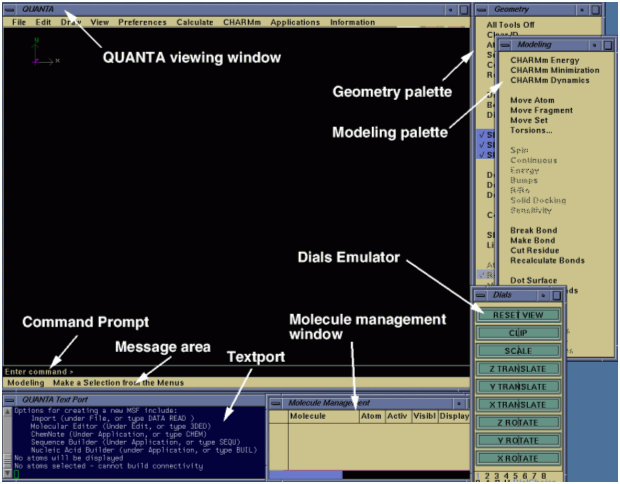
Figure 2. The layout of QUANTA
Go to the File pulldown menu located on the menu bar and drag down to the Import Single Structure command and then release the button to select it. Click on the file you want to import (kringle4.pdb), (it will become highlighted) and then click Import.
You should now have an image of the protein with the atoms colored by element. The atoms are joined together by lines that represent covalent bonds. Regardless of how a structure is created, information about it is stored in QUANTA as a molecular structure file or MSF. File names are written as filename.msf. An MSF contains at least this basic information:
3. Manipulation of the molecule
Dial emulators that control vector quantities like translation, rotation, and scaling are affected by the position of the cursor over the emulator dials.
For example, if you click on the right side of the Z-rotation emulator dial using any mouse button, the structure in the viewing area rotates clockwise. Pressing and holding the button while dragging the mouse to the right results in continuous clockwise rotation that increases in speed as the cursor moves farther right. If the molecule gets lost then pick the dial bar called Reset View.
A much more natural method for manipulating the molecule is to use a combination of keyboard keys and mouse buttons as a virtual track ball (summarized in Figure 3.).
Move the mouse so the cursor is in the viewing area. Press and hold the middle mouse button and move the mouse so the cursor moves around the viewing area.
The structure rotates at the same speed and in the same direction as the mouse. The axes, displayed in the upper-left corner of the viewing area, rotate with the structure. Release the mouse button. The structure and axes stop rotating.
Now we will rotate about the screen Z-axis. This axis is perpendicular to the plane of the screen.
Press and hold the right mouse button. Move the mouse so the cursor moves to the left side of the viewing area. While continuing to press and hold the right mouse button, move the mouse so the cursor moves to the right side of the viewing area.
We can move the structure through a clipping zone.
Press the shift key and hold the left mouse button. Move the mouse so the cursor moves towards the top of the viewing area. You have narrowed the depth of the zone along the Z axis where parts of your structure are visible. Move the mouse so the cursor moves towards the bottom of the viewing area. You have increased the depth of the zone along the Z axis where parts of your structure are visible.
We can also translate the displayed structure on the XY axes.
A translation along the Z axis is also possible.
You can scale the structure as well.
Press the <Shift> key and don't press any mouse buttons. Move the mouse so the cursor moves towards the bottom of the viewing area. The molecule enlarges as the viewer appears to come closer to the molecule. Move the cursor to the top of window and watch the structure become smaller.
You can easily display information about atoms.
Many QUANTA operations require that an atom or set of atoms be picked before processing. When an atom is picked, an identification tag (ID) is displayed on the screen adjacent to the picked atom. Place the point of the cursor over an atom. Click the left mouse button. The atom ID is displayed next to the atom, and information about the atom is displayed in the Textport.
Now, we will return the structure to its original orientation.
Select the Reset View dial on the Dial Emulator. The structure returns to its original orientation. Reset View in the Geometry pallet and the Reset View dial perform the same function.

4. Setting the origin of rotation
To change the origin of rotation click the Set Origin tool on the Geometry palette (you may need to bring this palette to the front by clicking on the side on the border). The command will be highlighted and ticked, and a message will appear prompting you to pick an atom. Click on an atom in the protein. The protein will then be re-centered about this atom and the atoms coded name (ID) will appear in green. Click on Clear ID on the Geometry palette to remove the atom name from the display.
To export files from QUANTA go to the File pulldown menu located on the menu bar and drag down to the Export. You can select the format required in the Data Format box (e.g. CHARMm CRD - you may have to scroll down using the blue/black scroll bar) and enter a file name to be saved in the Filename box before clicking on Export or hitting enter.
With the CRD format, you are prompted to enter a title or comment for the file. Enter a blank line to complete the title.
The QUANTA manuals and various tutorials are accessible from the menu function Information/Help.... In addition, there is interactive help for some palette tools and top-menu bar items that can be turned on with the command SET HELP. This can be optionally accessed by clicking the palette or menu with the right mouse button.
By default, online help will launch a copy of the Netscape browser. It is therefore necessary for the command "netscape" to exist in your path.
Alternatively, help text can be displayed in the textport. This can be specified using the command SET HELP, but it happens automatically if Netscape cannot be started. Only text is printed to the textport - HTML formatting, graphics, tables etc. will of course be lost.
To exit from QUANTA go to the File pulldown menu located on the menu bar and drag down to Exit QUANTA or by typing end in the command line.
In this tutorial, you will learn to manipulate the display and positioning of the main view in QUANTA. The context will be using X-Ray crystal data, a structure with an electron density map.
For this tutorial, the best molecular replacement solution (rigid_k4.pdb) has been used to calculate a 2Fo-Fc electron density map at 1.9 Å (2Fo-Fc_k4.mbk). You will be viewing this map along with the kringle structure that was used to calculate the phase information.
The main QUANTA graphics window will contain a molecule kringle and a contoured section of map at 1.0 and 2.0.
The following palettes and tables appear:
While the following pallets or tables remain visible:
Click on Symmetry... on the X-AUTOFIT:X-BUILD palette. The Symmetry palette appears as the front window.
This palette allows the definition of symmetry and NCS. A number of symmetry objects can be created using tools on this palette. In this case, the symmetry has already been defined.
This tool will generate a unit cell box as an object (UNIT CELL). The box can be removed again by deleting the object from the Object Management Table.
This tool generates a number of symmetry copies (shown as Ca traces) of the current visible and active molecules in the Main QUANTA window. Each molecule is drawn a different color, using colors 1 to 14, in cycles of 14. Each symmetry copy is created as a separate object that can be turned on/off using the Object Management Table.
The symmetry objects can be deleted simultaneously by selecting the Delete Sym. Ob. tool on the Symmetry palette.
There are a number of related tools within the Symmetry palette. Try to find out what each tool does. Before moving on, make sure that all the symmetry objects have been deleted.
The default appearance of the pointer is a white tetrahedron in the molecule window. The pointer can be moved in several ways.
Move the mouse so the cursor moves inside the viewing area. Press the <Ctrl> and <Shift> keys and don't press any mouse buttons. Move the mouse to translate the pointer in the X and Y axes. Press the <Ctrl> and <Shift> key and press the left mouse button. Move the mouse left and right to translate the pointer in the Z axis.
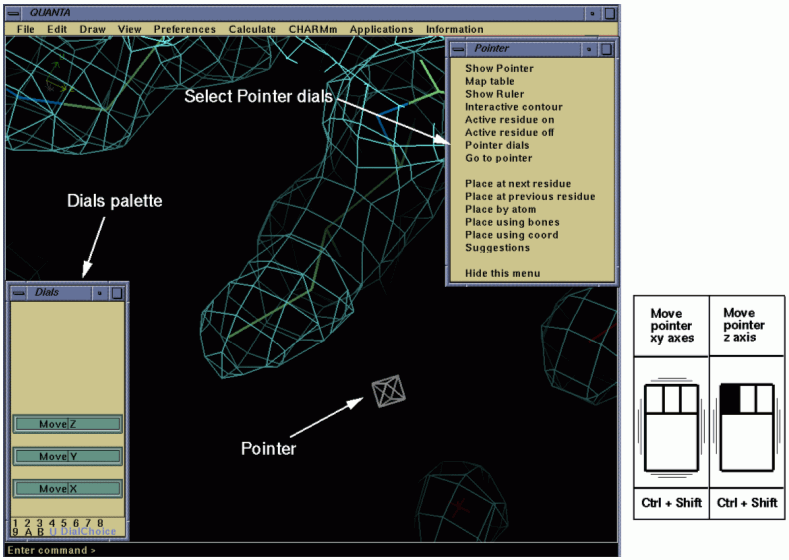
To pick an atom move the mouse to an atom position and click the left mouse button. This identifies the atom. If you click a symmetry atom (colored blue for real symmetry or colored red for NCS symmetry), the label appears green and be preceded by a "#" symbol.
There are several methods of changing the view center in the X-Ray applications. In all cases, you will find that the symmetry atoms and map (and bones, if on) are recalculated for the region of interest.
Make sure you can see the Pointer palette. If you cannot see the palette then click on the top bar of the X-AUTOFIT:X-BUILD palette to move this to the front, and click on the Pointer... tool: the palette will appear. Select Go to pointer.
This moves the screen center to the current pointer position.
This command varies according to the current residue. It moves the view to the next residue in the sequence (except where the step value has been changed). You can also change the current residue if you click on the Ramachandran plot or use Place by coord or Place by atom.
This prompts for an atom name.
This waits for an atom pick using the left mouse button while pointing at an atom. Look at the bottom of the graphics window at the message line. Pick atom is displayed, and the Place using coord tool remains highlighted until you make a pick.
6. The interactive contouring palette
The interactive contour tool allows you to change the level at which an electron density is contoured.
Click Interactive contour on the Pointer palette. The Interactive contour palette appears as the front window.
As soon as the routine is entered only one contour level of one map is displayed regardless of the display state before entering the routine. The default is to show the first contour of the first map initially. In this case, the Next Map and Previous Map tools are grayed out since only one map has been loaded.
The contour level is controlled using the Dials palette or a combination of keyboard keys and mouse buttons: the virtual track ball option (Figure 2).
Move the mouse so the cursor moves into the viewing area. Press the control and shift keys and don't press any mouse buttons. Move the mouse to left and right to change the current contour level of the map. Click Next Contour and the display will change to the next contour in the list for the current map. The Accept tool will make the changes to the stored values for contouring and exit. The Quit tool will reject any changes and return to the original display.

You can also change the center of view using the Ramachandran plot palette which is located at the bottom right of the screen. It is currently quite small, so make it bigger by picking up a corner with the mouse and dragging. (The non-glycine residues are shown green, and glycine residues are shown blue, and the current residue (if defined) is shown red.)
Pick a blue circle with the mouse. The blue circle turns red, as this is now the current residue, and the molecular display has changed to center the glycine you picked.
The Text palette controls the creation and use of annotations associated with points in the structure. These text marks allow you to label parts of the model for future reference and also change the center of view to a specific text position. You will become very familiar with these during the subsequent tutorials.
If the 3D Text palette is not visible click Text... on the X-AUTOFIT:X-BUILD palette. Text strings have already added in this tutorial. You can get to the first text string by picking the tool Goto defined text. A sorted list is provided. Since the first text string {TEXT STRING 1} is already highlighted click Goto. This takes you to a yellow text mark {TEXT STRING 1}. Now pick Goto next text, and you will move to another text mark {TEXT STRING 2}.
You can add your own text mark.
Move the pointer using the virtual track ball option somewhere else in the structure, or use one of the other placement options described above (the pointer will be reset to the new screen center). Now select the tool on the 3D Text palette New text at pointer. You will be prompted for a text string. Type in a string of characters, and hit OK. The new text string will appear. You can go to the various text string in the structure using either of the tools Goto next text, Goto previous text or Goto defined text.
Try using the Load property tool on the 3D Text palette.
9. Controlling the behavior of the program
You will find various options that control the functionality of the X-Ray applications.
Change the symmetry radius to 50 and click OK. A large selection of symmetry atoms is displayed after about 10 seconds. Now change the value back to 6.
For all the subsequent tutorials, all these parameters will be set to sensible values for the particular tutorial.
To end your session click on Finish on the X-AUTOFIT:X-BUILD palette and go to the File pulldown menu. Select Exit QUANTA from the menu.
Ca-tracing may be done manually using X-AUTOFIT. This tutorial involves the use of the electron density map (2.4 Å) of the protein RNase Sa (1, 2) solved in 1987. This map represents the exact data used to solve the protein structure and forms the basis of the original publication (rnase.mbk). During this session, you will be tracing the a-carbons of a monomer unit in the homodimer RNase.
In this tutorial the following material will be covered:
Move into the directory lesson5/ and start QUANTA.
Select Applications/X-AUTOFIT. The program opens the main X-AUTOFIT:X-BUILD palette, the Object Management palette, the Molecule Management palette and a window labeled CA angle/torsion. A skeletonized view of the electron density map is displayed and two items of text are present.
From the File pulldown menu, select the Replay Session pullright menu. Then select the Start command. Highlight rnase.rec and click Open. This runs a script that sets up a map mask and opens the Maps Management table. The map rnase.mbk is already loaded and has been contoured at 0.30 e Å-3 (which is 1.5). To toggle the map on and off, click on the level box in the Map Management table that currently reads 0.30.
The bones have already been calculated and are displayed. To toggle the bones on and off, you can click the tool X-AUTOFIT:X-BUILD/Bones.../Bones on-off. Turn off the map with the Map Management table. Currently, just the main chain bones are displayed (colored yellow). To turn on the side chain bones (colored white) by picking Side chains on-off.
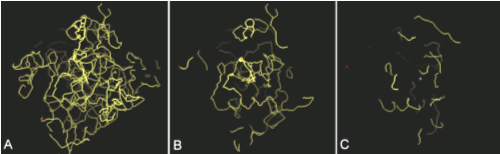
Examine the bones to determine how to adjust the Start value. The Start value is a cutoff parameter (in) that you can adjust. All density below the defined value is removed from an electron density map and ignored when a bones skeleton is generated. If the bones appear as spaghetti (Figure 1A), the Start value needs to be increased until individual segments become evident (Figure 1B). If no connected bones are visible, or if they appear as single dots, the Start value needs to be decreased (Figure 1C).
To change the value, click Change start value on the Bones palette. Experiment with different values.
There are 2 methods of adding carbon atoms in X-AUTOFIT, you can either add predefined secondary structure elements such as a helix or sheet, or add carbon atoms one at a time using the semi-automated fitting algorithm.
You should turn off the map so that only the bones are visible. Rotate the image until you can identify the section of bones that can be recognized as a helix - this is also labeled as an item of text Helix (11 residues).
Use the tool Add helix or strand on the CA Build palette to add a helix. A small dialog box will appear that allows you to add a helix/sheet of defined length. You should change the value to 11. A white image of a helix will appear, as well as another small palette Accept/Quit. You will not be able to use any other tool in X-AUTOFIT while this Accept/Quit palette is open.
The Accept tool from this will take the current coordinates defined by the white movable helix and create a new segment from this. The Quit tool will return everything as it was before. Now use the virtual trackball to move the white helix. You will find it initially easier to have the map turned off, and just fit the helix to the bones.
You need not get a perfect fit the first time as moving the helix in 3D can be difficult. It is often easiest to just adjust the Z-rotation, when the picture has been orientated so that the helix is in the plane of the screen. (You will not need to change the x/y/z position). Make sure that the Ca positions of the helix align with the branches of the bones as these represent the side chain positions. You will find that moving the structure while the map is displayed can be rather slow. So when making large changes, for example when adding a helix, turn off the map, and at the final stages turn the map back on. Look at the map for the final adjustment of the Ca trace.
After you have accepted the helix your main QUANTA window should look something like Figure 2. The white helix is now colored red (indicating that it is the current segment) and has been created as an object (Ca TRACE), which can be turned on/off from within the Object Management table.
To improve the position of the helix you can use the tool Refine current seg on the CA Build palette. You can abort the refinement by clicking anywhere in the graphics window if things are obviously going wrong. You can also manually adjust the position by clicking on the tool CA build/Move current seg and use the virtual track ball.
5. The current Ca segment and atom
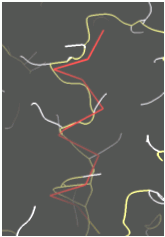
There are three types of CA-trace atoms: (1) an active Ca atom (colored yellow) in (2) an active Ca trace segment (colored red), and (3) other CA-trace segments (colored green) placed previously.
The active Ca trace atom (and active segment) is set using the Current res. and seg. tool on the CA Build palette. After selecting this menu item you are prompted to pick a Ca atom. Select different atoms on the helix you have just built to get a feel for this tool.
Ca atoms are added to existing segments by clicking on the tool Next CA on the CA Build palette. After checking that either of the terminal atoms of the helix you have just built is the active atom try to add a new atom. You should re-display the map for this.
The new atom is placed in the best possible position as evaluated by X-AUTOFIT. You can, however override this positioning by moving the active Ca trace atom (colored yellow) using one of the mechanisms listed below. Try each method in turn.
Clicking on any position within the pseudo-Ramachandran plot. This tool cannot be properly used until the 4th Ca has been placed (see following section of this tutorial).

7. Using the pseudo-Ramachandran plot
A pseudo-Ramachandran plot is generated for alpha-carbon geometry using well-resolved protein structures - this plot defines the probabilities of specific Ca geometries. The torsion angle of four consecutive alpha carbons is plotted against the open angle that is defined by three consecutive alpha carbon atoms (Figure 9.A). A probability map of alpha-carbon geometry can then be generated. The resulting plot shows the probability of the alpha-carbon geometry being restricted to certain regions (Figure 9.B). Different areas on the plot correspond to specific conformations of the protein backbone, including alpha helices and beta sheets. This surface is used to direct fitting of alpha carbons to the displayed electron density pattern. A pointer indicates the current value of the open angle and torsion angle. The plot provides an interactive tool for monitoring and manipulating the conformation of the alpha-carbon trace. The pseudo-Ramachandran plot is displayed in an independent window labeled CA angle/torsion.
Clicking on any position within the pseudo-Ramachandran plot changes the position of the active Ca trace atom (colored yellow).

8. Re-centering the bones and map
The bones are only calculated inside the volume of electron density that is displayed. When you reach the edge of this you will need to re-contour the map by centering on the current Ca to continue tracing.
You can change the direction that the chain is being built by clicking on the tool CA Build/Reverse chain tool. After this, you often need to re-center the view by clicking on the tool Next bones box.
Extend the helix as far as you can either way until you reach a region of electron density that is uninterpretable. Use the tool Check CA direction (tool 14) to test the direction of the trace and how well the building has been carried out. Make sure that the maps/bones is covering this Ca trace.
If you get two zero values, the build was not good (or you have not moved the map to this position). If you get at least one non zero value, then you have certainly made a reasonable attempt at the tracing of the chain.
When building the beta sheet, it is easier to use the semi-automated map fitting routines rather than adding a strand of defined length. This is because the strands within protein structure are not typical in shape.
First, re-display the map centering on the item of text beta sheet (6 strands). To do this go to Text.../Goto defined text and click beta sheet (6 strands).
Use the tool New segment on the CA Build palette. The Accept:Quit palette will open and the message line will prompt you to pick a bones point from the graphics window. Find a branch point on the bones skeleton that looks like a piece of main chain with a long side chain. A red cross appears on the picked location. This is the starting alpha carbon.
If you are not satisfied with this point, simply click on another location on the bones skeleton. When the required point has been picked, then click on the Accept tool from the Accept:Quit palette.
The bones will be recalculated to be centered on this point, and a two Ca atom line segment will appear. The current Ca atom is yellow, and all other Ca atoms in the current segment are red. All other segments are green. Make sure the map is turned on.
Use the next CA tool to extend the trace by one Ca atom. When you have built as far as possible in one direction, use the Reverse chain tool to start building in the opposite direction. When you can no longer build this segment, repeat the operation using the new segment tool to add a new segment of Ca trace, and the next CA tool and reverse chain tools to extend the trace in the each direction. If you wish to remove a Ca atom, use CA build/Delete current CA.
To improve the fit of the current segment of Ca trace you can use the tool Refine current seg on the CA Build palette. You can abort the refinement by clicking anywhere in the graphics window if things are obviously going wrong. You can also manually adjust the position by clicking on the tool CA build/Move current seg and use the virtual track ball.
If you have made sufficient progress during the time allowed it is likely that you will need to join two segments of Ca trace.
To join two segments select Join 2 segments on the X-AUTOFIT:X-BUILD palette. The message line prompts you to select two alpha carbons from two built traces.
14. Opening a molecular structure file
You may want to compare your build Ca trace with the final refined coordinates for the RNase.
Click on Finish on the X-AUTOFIT:X-BUILD palette. To open the coordinates rnase.msf use File/Open. Click on the file rnase.msf (it will become highlighted) and then click on Open. The RNase appears in the main model window. If you go back into X-AUTOFIT you will be able to compare the positions. To make the comparison easier you will need to turn off the bones and map.
To end your session click on Finish on the X-AUTOFIT:X-BUILD palette and go to the File pulldown menu. Select Exit QUANTA from the menu.
1. Sevcik, J.; Dodson, E.; Dodson, G. G.; Zelinka, J. "The X-Ray analysis of ribonuclease Sa.", Metabolism of Nucleic Acids, including Gene Manipulation. Slovak Academy of Science, Bratislava., 33 (1987).
2. Sevcik, J.; Dodson, E.; Dodson, G. G. "Determination and restrained least-squares refinement of the crystal structures of ribonuclease Sa and its complex with 3'guanylic acid at 1.8 Å", Acta Cryst, B47 240 (1991).
The X-POWERFIT application is designed to analyze and interpret electron density maps of proteins and to detect the presence of alpha helices and beta sheets (1). The application gives the best results for large maps where the amount of information presented to the user by either the electron density or bones can make the Ca tracing task daunting. The X-POWERFIT application also provides methods to refine secondary structure into electron density and an extension to the semi-automated fitting to automatically trace multiple residues into density.
In this tutorial, the following material will be covered.
The tutorial involves the use of electron density map (2.4 Å) of the protein RNase Sa (2, 3) that you used in the previous lesson.
1. Opening a molecular structure file
Move to the directory lesson6/ and start QUANTA.
When QUANTA has finished loading, open the coordinates rnase.msf (for reference) using File/Open. Click on the file rnase.msf (it will become highlighted) and then click on Open. The RNase appears in the main model window.
Select Map Table from the Draw pulldown menu; pull across to Show Map Table. The Map Management table appears as the front window. Select Maps/Add a Map in the Map Management table. Choose the map called rnase.mbk by highlighting it and clicking Open. It is recommended that the map be contoured at 1.5 (which is 0.30 e Å-3). Enter 0.30 in the first Level box and click the OK button.
Select Applications/X-AUTOFIT. The program opens two palettes - the main X-AUTOFIT:X-BUILD palette and a Pointer palette. A Ramachandran plot appears for the structure in a window labeled CA angle/torsion. The map is contoured about the center of the molecule. To open the X-Powerfit palette, pick the tool X-AUTOFIT:X-BUILD /X-POWERFIT. Hide the molecule by clicking on the visible box on the Molecule Management table.
4. Bones generation and editing
Since we do not know where the molecule is in the map, you first need to identify the molecule in the map. This is most easily carried out using the bones display, as it is possible to remove excess information from the display very easily. First it is necessary to display the entire map.
Pick the tool X-AUTOFIT:X-BUILD/Options.... Set the map radius to 35 Å. Click on the OK button.
After completion of the contouring, the map should cover most of the unit cell (Figure 1). If you turn on the Rnase molecules using the Molecule Management table, these should lie near the center of the displayed map. Turn off the coordinate display again.
To generate the mask, we will assume there is no coordinate information (otherwise it is possible to generate a mask directly from the coordinates). It is necessary for the bones to be turned on:
Using the tool X-AUTOFIT:X-BUILD/Bones.../Bones on-off, turn on the bones, and turn off the map with the Map Management table. Now make the bones easier to visualize. Turn off the side chain bones to reduce the information on display by picking X-AUTOFIT:X-BUILD Bones.../Side chain on-off.
To edit the bones, you will use a tool to automatically delete bones by volume. This tool deletes fragments that are smaller than a cutoff threshold defined by their size divided by the total bones volume. The working tool takes a few seconds. The message line indicates the progress of the calculation.
Initially, to get an idea of the automated deletion of the bones, you should pick the tool X-AUTOFIT:X-BUILD Bones... /Delete all fragments five times. You should see in the textport the report of a delete percentage. This indicates the percentage of the total bones deleted. After five deletions, any fragment less than 32% of the initial size will have been deleted.
At this point, you should see one large volume of bones with a tail leading off. You may need to rotate the image to see the tail. It is necessary to remove this side fragment.
Pick the tool X-AUTOFIT:X-BUILD Bones... /Delete 1 section and pick a bones point on the link. The link will disappear from the screen.
To delete the offending tail we will use the tool that deletes whole fragments.
Pick the tool X-AUTOFIT:X-BUILD Bones... /Delete fragments and pick a bones point on the fragment. The fragment disappears from the screen. Note that this tool remains active until picked again. You should watch the message line and wait for the pick a bones point prompt after each pick.
If you delete a required part of the bones, you can use the tool X-AUTOFIT:X-BUILD Bones... /Undo last delete to restore it. Now turn on the side chains again using X-AUTOFIT:X-BUILD Bones... /Side chains on-off. You will see some small sections of bones that remain, and need to be deleted before continuing. IF you do not see the small bones, click on the Side chains on-off command again. Use the tool X-AUTOFIT:X-BUILD Bones.../Delete fragments to move around and pick/delete each small section. (Remember to pick the tool again to abort this mode).
On completion of this process, you should have just the bones that define a monomer.
This calculates the symmetry bones and will display these as a reduced representation net of bones. These should NOT overlap the real bones after the completion of the editing.
Pick the tool X-AUTOFIT:X-BUILD Map Mask... /Calc. mask from bones. The progress of the calculation is shown on the message line. Upon completion a net of white points indicate the mask.
You may wish to edit the mask with the mask sphere pointer. You can manipulate the mask sphere pointer by using the Dials emulator or a combination of keyboard keys and mouse buttons as shown (Figure 2).

If the graphics on your machine are not very powerful, it is recommended that you hide the bones using the Object Management table and reduce the dot density of the mask by picking X-AUTOFIT:X-BUILD/Map Mask.../Decrease resolution. This will make it easier to manipulate the pointer and display.
To remove the deep cavities into the mask, move the mask pointer over these and use the tool X-AUTOFIT:X-BUILD Map Mask.../Add Mask at pointer. This increases the number of inside points in the mask.
To delete sections from the mask use the tool X-AUTOFIT:X-BUILD Map Mask.../Del Mask at pointer. To remove voids from within the mask select X-AUTOFIT:X-BUILD/Map Mask.../Check for voids.
On completion of editing the mask, you should have a mask that forms the monomer molecular outline. You should save the mask by picking X-AUTOFIT:X-BUILD/Map Mask.../Save Mask to file and giving the file a name.
5. Using the mask as a bounding region
This mask can now be used in subsequent sessions as a bounding volume for all calculations.
The tool X-AUTOFIT:X-BUILD/ Bones.../Mask bones by mask will set up the bones to always be truncated so that they lie inside the mask.
If this tool is used now, then the textport message indicates that there are no points outside the mask. This is because this mask has been generated by the bones, and so surrounds the bones anyway.
To see the action, turn off the bones using the X-AUTOFIT:X-BUILD/Bones.../Bones on-off tool, then pick the tool again to turn the bones back on.
The program indicates that some points lie outside the mask, and have been deleted. Therefore in any subsequent session, read in a mask, then turn on the bones, then mask these using the mask.
You should turn off the visibility of the mask (using the Object Management table) in the subsequent analysis.
6. Identifying secondary structure
For the identification of the secondary structure, you should have:
It is not necessary to view the mask when the Mask bones by mask tool is active, as the program takes care to prevent the user building outside the mask. The hiding of the mask increases the speed of the next part of the calculation, as the image display will update during the analysis.
To calculate the secondary structure of the molecule, pick the tool X-AUTOFIT-X-BUILD/X-POWERFIT/Find sec. struct.
You should see the pattern recognition algorithm marking possible strand and helix positions. Then the next stage of the calculation carries out a cluster analysis, followed by directed refinement and finally an overlap analysis. You should end up with six or seven structure elements, depending on the mask quality.
7. Conversion of the secondary structure to Ca atoms
You should check that the vectors are correct by looking at the bones (and map) closely when converting the vectors to Ca trace.
The algorithm tends to work better for larger maps where solvent flattening does not affect the ends of the strands.
Once the secondary structure has been placed, it is now possible to extend this with the tool X-POWERFIT/Auto extend CA. The extension is carried out from the current Ca atom in the current Ca trace. You should note:
You should experiment with using the tool from each end of the secondary structure placed, using the pie chart in the bottom left hand corner of the display to view the progress.
Segments of placed Ca trace can be refined with the tool X-POWERFIT/CA refinement, particularly where secondary structure elements have been added in places where the density indicates deformation within the secondary structure. When using this tool make sure that the map completely covers the current segment you wish to refine. This is a very powerful tool that can improve the Ca trace significantly.
10. Comparing your results to the known structure
You may want to compare your build Ca trace with the final refined coordinates for the RNase.
Display the molecule by setting the Visible column to yes in the Maps Management table. Compare the complete structure to the segments produced by X-AUTOFIT.
To end your session click on Finish on the X-AUTOFIT:X-BUILD palette and go to the File pulldown menu. Select Exit QUANTA from the menu
1. Oldfield TJ. Pattern recognition methods to identify secondary structure within X-Ray crystallographic electron density maps. Acta Crystallogr D. D58, 487-493 (2002).
2. Sevcik J, Dodson E, Dodson GG, Zelinka J. 1987. The X-Ray analysis of ribonuclease Sa. In Metabolism of Nucleic Acids, including Gene Manipulation, pp. 33. Bratislava: Slovak Academy of Science.
3. Sevcik J, Dodson EJ, Dodson GG. 1991. Determination and restrained least-squares refinement of the structures of ribonuclease Sa and its complex with 3'-guanylic acid at 1.8 A resolution. Acta Crystallogr B 47: 240.
4. Oldfield TJ. Automated tracing of electrom-density maps of proteins Acta Cryst. D59, 483 (2003).
In this tutorial, the following material will be covered:
The tutorial involves the use of the electron density map of the protein RNase Sa (1,2) that you have used in the previous two lessons. During this session, you will be converting the Ca trace into an all atom representation.
The program opens the following palettes:
X-AUTOFIT has a sequence alignment algorithm that allows you to generate alignment information that matches molecular sequence information of the structure you are studying with alpha-carbon segments you have generated. The algorithm can be applied after you have labeled at least one residue either specifically or using a fuzzy residue type. When you start the application a section of Ca trace will appear as a red object and the sequence for the monomer is displayed at the top of the molecule window. Each Ca has the text string UNK to indicate that no sequence information is known at the moment.
From the Draw pullright menu, pull across to Show Map Table. Then, select Map Table. The Map Management table appears as the front window. The map rnase.mbk is already loaded and has been contoured at 0.23 e Å-3. To toggle the map on and off click on the level box in the Map Management table that currently reads 0.23.
3. Assignment of the first residue
Click Text... on the X-AUTOFIT:X-BUILD palette to open the 3D Text palette. Text strings have already been added in this tutorial. You can get to the first text string by picking the tool Goto defined text. Since the first text string (Tyrosine) is already highlighted click the Goto button. This takes you to a yellow text mark.
Make sure that the map is now turned on. On the Sequence palette, click Current res. and seq. You are prompted to pick a Ca atom. Select the Ca closest to the text item labeled Tyrosine.
The atom you have just selected is now colored yellow to indicate that it is the current CA.
Now that you have assigned a sequence definition to an alpha carbon, X-AUTOFIT shows all forward and backward sequence alignments from that residue for the Ca trace. The alignments are displayed as arrows (blue for forward alignment and red for reverse alignment) underneath the aligned residues in the residue sequence table at the top of the molecule window. The current residue is marked as blue boxes for forward fitting and red boxes for reversed fitting.
4. Assignment of the second residue
Go to the second text string by picking the tool Goto defined text. Highlight the second text string (Arginine) and highlight click Goto. This takes you to the second yellow text mark. Make sure that the map is now turned on. On the Sequence palette, click Current res. and seq. You are prompted to pick a Ca atom. Select the Ca closest to the text item labeled Arginine. Select Arginine from the Specific palette.
At this point, X-AUTOFIT has identified a unique sequence for a segment and that sequence is shown in uppercase letters in the sequence table to indicate this.
5. Checking the polarity of the chain
To determine the correct direction of the chain X-AUTOFIT attempts to fit polyglycine to the trace in both directions.
The map must cover the entire current Ca segment since the atoms are built into the electron density. If it does not, then you should move the pointer into the center of the Ca trace and recalculate the map. To do this, first of all activate the pointer dials by clicking Pointer dials on the Pointer palette. You can then move the pointer around using the virtual track ball option. When you are satisfied with the pointer position click Go to pointer on the Pointer palette to re-calculate the map. The volume of map displayed can be changed using the Options... palette selected from the main X-AUTOFIT:X-BUILD palette. To get polarity information for the current segment, select Check CA direction on the CA Build palette.
The following information is then reported in the text port:
The ratio compares the fit for the current chain direction (left number) with the reversed chain direction (right number).
To change segment polarity select Reverse chain on the CA Build palette. The colors of any arrows indicating sequence alignments for the segment are reversed (that is, red becomes blue and blue becomes red).
6. Building all-atom representation from Ca trace
Once a Ca trace has been generated and the sequence has been assigned then the production of an all-atom model is a trivial process. There are three methods of generating all atom models from CA-traces: just using real space refinement (RSR), fitting the main chain with database fragment fitting (and the side chains with RSR), and fitting the main chain atoms by direct correlation of the Ca conformation with all atom geometry (and the side chains with RSR).
Make sure the chain is the correct way round and then build the entire chain using Fit seg by CA corr tool. If you have contoured the map over the entire chain you should find that the forward direction (blue arrows) is significantly better fit.
On completion, the coordinates are colored by fit to the electron density. The goodness of the fit is color coded as follows:
7. Opening a molecular structure file
You may want to compare your build section with the final refined coordinates for the RNase.
Click on Finish on the X-AUTOFIT:X-BUILD palette. When prompted save the coordinates to a new file name. To open the coordinates rnase.msf use File/Open. Click on the file rnase.msf (it will become highlighted) and then click on Open. The RNase appears in the main model window. If you go back into X-AUTOFIT you will be able to compare the positions. To do this effectively, you may wish to reduce the volume of map displayed to 10-12 Å3 and turn off the Ca trace by toggling the display to No in the Object Management window.
To end your session click on Finish on the X-AUTOFIT:X-BUILD palette and go to the File pulldown menu. Select Exit QUANTA from the menu
1. Sevcik, J.; Dodson, E.; Dodson, G. G.; Zelinka, J. "The X-Ray analysis of ribonuclease Sa.", Metabolism of Nucleic Acids, including Gene Manipulation. Slovak Academy of Science, Bratislava., 33 (1987).
2. Sevcik, J.; Dodson, E.; Dodson, G. G. "Determination and restrained least-squares refinement of the crystal structures of ribonuclease Sa and its complex with 3'guanylic acid at 1.8 Å", Acta Cryst, B47 240 (1991).
The model building functionality in X-BUILD allows real space refinement in torsion angle space, rigid body refinement, regularization and general manual editing of macromolecular coordinates.
For this tutorial, you will be carrying out some model building on the protein apolipoprotein KIV-10 from lesson 2. In lesson 2, the coordinates of human plasminogen kringle (1) were used as an initial model for a Molecular Replacement calculation using X-Ray reflection data collected from apolipoprotein a KIV-10 (2). For this tutorial, the best molecular replacement solution (rigid_k4.pdb) has been used to calculate a 2Fo-Fc electron density map (1.9 Å) (2Fo-Fc_k4.mbk). Recall that the sequence identity between the two proteins is approximately 80%.
You will work through the list of tools on the main model building palettes to demonstrate the building functionality within X-BUILD. The text editor text markers are used to indicate a residue for the action, but after working through the tutorial any part of the apolipoprotein structure can be modeled.
This tutorial covers the following material:
1. Opening a molecular structure file
When QUANTA has finished loading open the coordinates rigid_k4.msf using File/Open. Click on the file rigid_k4.msf (it will become highlighted) and then click on Open. The molecule appears in the main model window.
Select Map Table from the Draw pulldown menu, while keeping the mouse button depressed pull across to Show Map Table. The Map Management table appears as the front window. Select Maps/Add a Map in the Map Management table. Choose the map called 2Fo-Fc_k4.mbk by highlighting it and click Open.
The Define Contour Levels and Characteristics dialog box appears. It is recommended that the maps be contoured at 1.0 and 2.0s (which is 0.95 and 1.9 e Å-3). To do this, enter the values 0.95 and 1.9 in the Level boxes. Click OK.
Select Applications/X-AUTOFIT. The main X-BUILD:X-AUTOFIT palette opens, along with the Pointer palette, an Object Management table, a Ramachandran Plot, and the display of some of the map. You will also need the Text palette and Building palette. Open these by picking the tools X-BUILD/Text... and X-BUILD/Build atoms....
For each tool, you will be asked to use the 3D text editor tool Goto defined text to go to a specific part of the structure (labeled with a text string) to try the tool. To complete the tutorial as designed, please follow the instructions.
The Refine 1 residue tool fits single residues or atoms using gradient refinement. You will use this tool to refine a ligand into some density as it is approximately 0.5 Å from the center of the density.
Go to the {Refine 1 residue} text string using the 3D text tool/Goto defined text. Pick the tool Refine 1 residue from the Build atoms palette. The message line at the bottom of the graphics window asks you to Pick a residue/water. Move the mouse arrow to the ligand and select an atom with a click with the left mouse button. An Accept:Quit palette appears and the ligand begins to refine.
The refinement is graphics-limited and will proceed much faster without the map turned on. The message line indicates the progress of the refinement and indicates when the refinement has completed. (If we wanted to stop the refinement, clicking with the left mouse button would do so.)
When the message line says Finished, you can either Accept or Quit the solution using the Accept:Quit palette.
5. Geometric conformation tool
This tool is used to place side chains of amino acids in conformations normally found in proteins when there is no experimental information to define the conformation experimentally. In this case, a glutamic acid residue requires attention.
Go to the {Geometric conformation} text string using the 3D text tool Goto defined text.
Pick the tool Build atoms/Geometric conformation. The message line at the bottom of the graphics window asks you to Pick atom to set geometry. Pick any atom in the glutamate residue. A Geometry palette appears on the right-hand side of the screen, containing seven rotamer options, all trans conformation, and an Accept:Quit pair. You cannot pick any other tool while this palette is active. The first option (Rota 1 -> 27.2%) is highlighted, and this conformation appears in white on the graphics view of the molecule. Pick different rotamers from the Geometry palette and look at the different conformations, their energy and bumps.
You can either Accept or Quit the solution using the Accept:Quit pair.
6. Side chain fitting using grid real space refinement
There you will find an arginine residue on the surface of the protein that does not fit the density. In fact, it is a very long way from the correct position and too far for gradient-type refinement to work.
To fit this residue automatically into the density, pick the tool Fit side chain by RSR. The message line at the bottom of the graphics window indicates that you should pick an atom at which to begin the refinement. This means that the program will ONLY REFINE OUTWARD FROM THE ATOM SELECTED, so you MUST pick the Ca atom of this residue to fit the whole side chain.
The arginine immediately jumps into the electron density.
The Move atom + RSR option (the fifth tool down the Build atoms palette) continuously refines all the side chain chi angles that follow a side chain atom that you are moving. Make sure you remember how to use the virtual track ball option (you can practice moving the pointer first) before doing the following:
Pick the tool Move atom + RSR in the Build atoms palette. The program prompts you pick an atom to move, and RSR simultaneously. Pick the Ca of this arginine again. The Accept:Quit palette and a white current solution appears. The message line at the bottom of the graphics window indicates the current fit to density.
Move the Ca atom using the virtual trackball XY motion and watch the side chain trying to stick in the density. Eventually, if you move the Ca atom far enough, the side chain will flip to some other density.
The application only applies local non-bonding, so you should also watch the energy value and the non-bond indicators during the refinement.
When you have finished moving the atom, pick either the Accept or Quit option from the Accept:Quit palette, and the white solution disappears. If you choose Accept, the side chain is updated.
There are three ways to edit peptide planes. At the labeled peptide bond, you will use all three methods.
First, we will use the Flip torsion by 180 deg tool.
Pick the tool Flip torsion 180 deg. on the Build atoms palette. You are prompted to pick a rotatable bond, in this case the peptide bond marked. (Note that this is not strictly a rotatable bond because this selection results in the rotation of the peptide plane, and not the bond). The peptide plane flips 180º.
Now, we will use the Fit main chain by RSR tool, which is the second method.
To change this back again, use the tool Fit main chain by RSR. You are prompted to pick a peptide bond. (If you do not pick a peptide bond, the program ignores the tool.) The application fits the atoms into the density by refining the peptide plane AND the omega angle (within limits). The atoms should fit the density again.
Finally, the third approach uses the Edit backbone torsion tool.
To edit the peptide plane and omega manually, you can use the tool Edit backbone tor. After selecting a peptide bond, this tool allows you to change the peptide plane with the virtual trackball, but the omega angle can ONLY be changed with the dial box.
Adjusting the omega angle only with the dial box helps ensure that the omega angle is not moved by mistake. If you look at the Ramachandran plot, you find the two phi-psi pairs of torsion that are changed by this tool displayed, and as you more the peptide plane, the dots move. The message line also shows the actual values of phi and psi plus omega.
8. Regularization of coordinates
You find a glutamine residue at this position in the structure with poor geometry.
To correct the geometry of this residue, select the tool Regularize from the Build atoms palette. The program prompts for the first residue in the regularize zone and the last residue in the regularize zone. Pick any atom in the glutamine residue twice to indicate that this is the only residue to be regularized.
The residue regularizes to the expected geometry. The regularization proceeds much faster when the map is turned off, as the display refresh is much faster. You can now try the interactive editing while the regularizer is active.
This time pick the tool Build atoms/Move atoms + reg. res. and select one of the atoms, Oe1 or Ne2, from this residue. The Accept:Quit palette appears and the message line at the bottom of the QUANTA graphics window shows the residual. A green atom representation of the residue appears in the graphics window. Now use the virtual track ball option to move this picked atom. When moving a single residue with the regularizer active, the refresh of the coordinates is limited by the graphics of the machine. You can now drag the side chain around by this atom, where the N and C atoms of the residue are anchored at their initial positions as shown by the crosses.
The bonds of the residue change color, depending on the deviation of the geometry at each atom at the ends of this bond. To change the moving atom, pick a new atom with the left mouse button. The moving atom is marked with a cross. You can free the fixed ends of the residue (O and N) atoms by picking these as moving atoms.
To try out Move atom + reg. zone, you need to be able to view THR 37, GLN 34 (the residue with the text label {Regularize}, and residue ARG 32.
Use the left mouse button to pick and identify the residues. (Although it does not matter on which residue you actually try this, these residues are used for the tutorial.) Select the tool Move atom + reg. zone. You are prompted for:
* First residue in zone ----------- ARG 32
You need not pick the first/last residues in order, and you can pick any atom of a residue to specify the range to regularized.
Initially the zone regularizes to completion. The message line notes that a new moving atom can be picked at any time (with the left mouse button), and a value for the current residual. A green display of the regularized atoms also appears.
If a residue in the zone of regularization contains a cystine residue as part of a disulfide bond, a text port comment, Disulfide link added, appears. This is because the last residue in the zone was a cystine residue, so the link + the other cystine residue is added as part of the regularized residues.
You can now move the current moving atom with the virtual trackball (or dials), and change the moving atom. Experiment with changing the Ca positions, and then either Accept or Quit the editing.
An arginine residue is at this text marker with two side chain conformations. You can view which conformation is the B-conformer using a coloring option:
From the Build atoms palette select the Color atoms... tool. This opens a new palette, Atom color. There are 6 tools on this palette. Pick Color B-alt different. The B-conformer of this residue turns pink.
Find the tool X-BUILD-X-AUTOFIT/Build atoms/Add-delete/Delete residue. When you pick this tool the application prompts you for a residue to delete. Pick the pink B-conformation. The B-conformation disappears.
Now, to place the B-conformation back again, use the tool Add alternate conformation on the same palette.
The B-conformation appears, with Ca and Cb atoms in the same position and the side chain different from the CG atom. This is because the default mode of action for alternate conformation is to place the main chain atoms in the same place, and allow only side chain atoms to have different positions, where CB is the branch point.
To change this action you should change the toggle option on the X-BUILD/X-AUTOFIT/Options... dialog box B-conf clamped to A backbone so that it is turned off. Now you can move B-conformation atoms so that the whole can be an alternate conformation, and therefore separate the CB atoms.
10. Adding residues to termini
You should find that the display has centered on a region of the map where the density continues without any atoms. You will place a leucine residue and a threonine residue in this density.
You should still have the Add-delete palette open; if not, open this from the Build atoms palette using the Add/delete... tool. Select the tool Add res at termini and select the carbonyl carbon atom at the 3D text marker. (If you do not pick the terminal residue, the addition aborts.) A palette appears so you can select a residue. Select leucine, which then appears within the density. Select this tool again and place a threonine residue.
Both residues have been placed into the electron density close to a sensible conformation. This is because the application fits the terminal residues using a tree search algorithm for density fitting to the last/previous residue, so that any new atoms are fitted to the electron density in the best possible conformation. Hence, adding a residue to the termini is extremely easy.
You may want to try to improve the fit to the density using other tools after completing the rest of this set of tutorials.
You find serine in this position of human plasminogen kringle 4 that should in fact be a tyrosine in apolipoprotein (a) KIV-10
To correct this residue, select the tool Mutate residue from the Build atoms palette. The program prompts for the residue to mutate. Pick any atom in the serine residue. You are then prompted to select a new residue type, select Tyrosine from the Specific palette. You may want to try to improve the fit to the density using other tools.
12. Using the Structure palette
Go to the {Loop fit 1} text string using the 3D text tool Goto defined text. You can experiment with the Structure palette for modeling zones of residues. Use the tool Loop fit to fit the loop Ca 67 to Ca 72 of segment ARIG. Then use the Refine zone tool to improve the loop fitting solution.
You should use the tool X-BUILD:X-AUTOFIT/Structure.../Loop fit and pick the two labeled atoms ({Loop fit 1} to {Loop fit 2}). The program searches for loop conformations until you click with the left mouse button to abort the search, or the time limit expires (See the Options... dialog bog for the time limit. The default is 10 minutes.). You can then view the best 10 solutions (defined by the fit to electron density), Accept/Quit a solution, or continue the search. If the loop search finds a better solution, use the Refine zone tool to improve the fit by gradient refinement.
To validate the structure, select the Protein validation tool on the X-Autofit:X-Build palette, and then work through the 3D text list of errors using the Goto next text tool to look at each one.
To end your session click on Finish on the X-AUTOFIT:X-BUILD palette and go to the File pulldown menu. Select Exit QUANTA from the menu.
1. Mulichak, A. M.; Tulinsky, A.; Ravichandran, K. G. "Crystal and molecular structure of human plasminogen kringle 4 refined at 1.9 Å resolution.", Biochemistry 30 10576 (1991).
2. Mochalkin, I.; Cheng, B.; Klezovitch, O.; Scanu, A. M.; Tulinsky, A. "Recombinant kringle IV-10 modules of human apolipoprotein(a): structure, ligand binding modes, and biological relevance." Biochemistry 38 1990 (1999).
X-LIGAND (1) is designed to search for unsatisfied electron density (density containing no molecular coordinates), sort these in order of volume, and fit a ligand to these sites automatically. The application is also able to search conformation flexibility of a ligand by varying any rotatable bonds and fit these rotamers to density at a rate of more than a thousand per second. This entire process, including refinement, can be carried out rapidly.
In this tutorial, the following material will be covered:
For this tutorial, you will be fitting a ligand to the protein apolipoprotein KIV-10, which has already been used in several earlier lessons.
Move to the directory lesson9/ that contains necessary files for this tutorial. Start QUANTA.
When QUANTA has finished loading, open the coordinates kiv-10.msf and e-aminocaproic.msf in that order using File/Open. Click on Open.
The small molecule is aminocaprioc acid (EACA), a competitive inhibitor for the interaction of kringles with other proteins. The binding mode for this ligand was a major objective in the original crystallographic study for this data (2).
For this tutorial, you will be displayed two electron density maps. An Fo-Fc map will be used to actually fit the ligand while a 2Fo-Fc map will be displayed for reference.
Select Map Table from the Draw menu and pull across to Show Map table. The Map Management Table appears as the front window. From that table, select Maps/Add a Map. Choose the map called 2Fo-Fc.mbk by highlighting it and click Open. The Define Contour Levels and Characteristics dialog box appears. It is recommended that the maps be contoured at 1.0 and 2.0, to do this make sure that two include levels are selected (indicated by black crosses) and click Levels from Sigma. Click OK.
Again, from the Map Management Table, choose the Maps/Add a Map command. This time select the file Fo-Fc.mbk. The recommended values for the level and color boxes for this map are shown in Figure 1. Click OK.
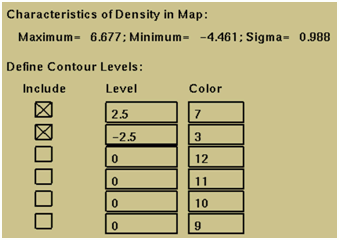
Figure 10. Suitable contour levels and colors for the Fo-Fc map
Select Applications/X-LIGAND. First of all, you will be prompted to choose which map you wish to use for the ligand fitting procedure. Select Fo-Fc.mbk and click OK.
When you start X-LIGAND, there will be a few seconds delay. This is because the program must generate a sphere of symmetry atoms, and then make sure the map covers these atoms. The X-LIGAND application generates a sphere of symmetry atoms around the working molecule so that symmetry ligand sites are not found as multiple sites. The message line at the bottom of the graphics screen will indicate the progress of the setting up. The X-LIGAND palette will appear with only 4 tools that can be selected.
If you zoom out a little you will see that the graphics display shows the molecule of apolipoprotein KIV-10, the ligand, and a blue sphere of symmetry atoms. The Object Management Window has also popped up to show that symmetry has been created as an object (SYMMETRY).
3. Finding possible ligand sites
This sets the map level (in s) at which the search for possible ligand sites is made in the map. A lower threshold will result in more sites being found, and will also increase the extent of the volume of each site that does not overlap the protein. A lower threshold will often result in the overlap of sites, giving fewer, larger sites. This is the only parameter that needs to be set by you. The rest are automatically determined by X-LIGAND.
Enter 3.0s as the Search Threshold. Click OK on the Ligand Search Parameters box and click on the palette tool Search for ligands.
This searches the map within the displayed sphere for possible sites for the ligand, and sorts these in order of volume. The display centers at the first (largest) possible ligand site, the Fo-Fc map is displayed at 2.5s along with a search volume that is indicated by yellow crosses. In addition, the 2Fo-Fc map is displayed at 1.0 and 2.0 although it is not being used in the ligand fitting procedure.
At this point, the application has already fitted the ligand at this site as a rigid body, so you will find that it will be in the correct position already, but in an incorrect conformation and orientation.
4. A conformational search of the ligand
As the ligand is currently a long way from the best solution, there is a delay of a few seconds. Each improved solution is displayed as it is found. The actual computation runs at about 1000 conformations/second.
This example has five internal degrees of freedom and the program uses the Monte Carlo search algorithm. The maximum time that the search will run is by default one minute although you can interrupt it at any time by clicking with the left mouse button. Leave it running for at least 30 seconds.
After a few minutes, the program returns the best 20 conformations.
Use the tool ...all 20 conformations to view all 20. You will see for this ligand that they are very similar. You can toggle through the different conformations using the tools ...previous conformation and ...next conformation tools.
You can now refine the ligand conformation, orientation, and position using the Refine tool on the X-LIGAND palette. You will need to select just one conformation before using this tool.
The refinement method is torsion angle real space refinement using both linear and quadratic interpolation of the electron density. The final coordinates will be within 0.01 Å of the refinement carried out with standard refinement procedures, but the radius of convergence is much higher with this routine.
In the X-LIGAND palette, use the tool Save ligand to MSF. Enter e-aminocaproic-fitted and click Save. This creates a new coordinate file containing the refined coordinates.
7. Exit the X-Ligand application
At this stage, you should have three molecules displayed in the main QUANTA window and listed in the Molecule Management window (see Figure 11.).

Figure 11. The Molecule Management window
You should retain the protein (kiv-10) and the fitted conformation of the ligand (e-aminocaproic-fitted). To close the coordinates e-aminocaproic use the File/Close command. Click on the file e-aminocaproic.msf (it will become highlighted and appear in the Close panel) and then click on OK.
You will now save the protein and fitted ligand to a single msf file. Click File/Save As... and accept the default writing options. Click OK. Call this new filename kiv-10-ligand and click Save.
Leave QUANTA running in preparation for the next lesson.
1. Oldfield, T. "X-LIGAND: An application for the automated addition of flexible ligands into electron density." Acta Cryst D57 696 (2001).
2. Mochalkin, I.; Cheng, B.; Klezovitch, O.; Scanu, A. M.; Tulinsky, A. "Recombinant kringle IV-10 modules of human apolipoprotein(a): structure, ligand binding modes, and biological relevance." Biochemistry 38 1990 (1999).
X-SOLVATE (1) is a tool that allows you to search an electron density map for water peaks, to adjust the peak positions, and to save them as water coordinates. In this tutorial, we will fit water molecules to the electron density map of apolipoprotein KIV-10 used in the previous lesson.
You should have completed lesson 9 before working through this tutorial.
If QUANTA is not running then move into the directory lesson9/ and at the UNIX prompt, type:
Before proceeding, ensure that kiv-10-ligand is the only molecule listed in the Molecule Management table.
Select Applications/X-SOLVATE. As in the previous tutorial, you will be prompted to choose which map you wish to use for the ligand fitting procedure. Select Fo-Fc.mbk and click OK.
QUANTA saves the current selection, color, and display masks. It then generates a selection mask that contains all atoms plus their symmetry equivalents for the map currently loaded. The message line at the bottom of the graphics screen will indicate the progress of the setting up. The graphics display will show the molecule of apolipoprotein KIV-10 with a ligand (fitted in the previous lesson) and a blue sphere of symmetry atoms. You may wish to zoom out a little to see this properly. A three-dial set is displayed containing dials for x/y/z positioning of current water molecules. Additionally, the Search for peaks palette appears with only 4 tools that can be selected.
This sets the map level (in s) at which the search for possible ligand sites is made in the map.
Since we are using an Fo-Fc map enter 2.5s as the Min density level. Click OK on the Peak Search Parameters box and click on the palette tool Search for waters.
This searches the map within the displayed sphere for possible sites for the ligand, and sorts these in order of volume. The display centers at the first (largest) possible water site, the Fo-Fc map is displayed at 2.5s, and a putative water site is indicated by a rhombohedral cursor, including non-bonds (yellow) and hydrogen bonds (white). In addition, the 2Fo-Fc map is displayed at 1.0 and 2.0s although it is not being used in the water fitting procedure.
For a single spherical water site, the program will normally find the best position (by quadratic interpolation) without any need to move the site position.
You can tell the program that this is a water site using the Save as water tool. A red cross then appears at the pointer position. To go to the next site use the Next peak tool. You can continue for all the water sites, saving each probable site as you go.
After you have saved several sites, you may continue with the exercise.
Clicking the Exit tool saves the new water positions as a new file, while the Quit option leaves and make no changes. Click the Exit tool.
At this stage, you should have two molecules displayed in the main QUANTA window and listed in the Molecule Management window. These are the protein itself (kiv-10-ligand) and any saved water molecules (searchwaters).
You will now save the protein and fitted water molecules to a single msf file. Click File/Save As and select all the writing options except Apply rotational transformations. Click on the OK button.
Leave QUANTA running in preparation for the next lesson.
You might like to investigate the effects of changing various parameters if you have extra time.
You can adjust the parameters for a search by selecting Change search setting... in the Search for peaks palette.
A dialog box is displayed and contains the following parameters with defaults shown on the screen. You can investigate changing various parameters as you wish.
1. Oldfield, T. "X-LIGAND: An application for the automated addition of flexible ligands into electron density." Acta Cryst D57 696 (2001).