This chapter describes the Analysis application. This application provides tools to compute, access and analyze physical properties of structures generated by dynamics simulations or conformational search procedures. Read this chapter if you intend to analyze the results of search procedures or dynamics simulations.
The Conformational Search and Dynamics Simulation applications produce files that contain multiple conformations of molecular structures. Up to 6000 structures can be handled by the Analysis application, but performance is best when smaller datasets are used.
The Analysis application provides tools to read or compute physical properties of these structures. It sorts, selects, and compares the structures using available physical properties data. Trends, correlations, and extremes of the data are revealed through a variety of plotting options. Use other l tools are provided to view structures one at a time or to view them overlaid after a least squares fitting procedure is applied. You can also cluster structures into subsets that have common conformational features.
Enter the Analysis applications either directly from the Applications menu or from the Conformational Search palette.
When you start Analysis, conformations in the input file are read and a table of properties is created. Each conformation has an identifying tag that consists of a meaningful prefix and a number that designates its order at the time it was created in the set of conformations.
Initially, the only defined property is energy. In some cases even energy values may not exist. If you only want to browse through the set of conformations, you need no additional properties.
To sort structures or plot information about them, define additional physical properties such as torsions or distances. Torsions defined in Analysis need not be the same as those used in a search procedure. The Torsions selection on the Analysis palette uses the same facility as the one on the Conformational Search palette. For more information about the facility as it is used in Conformational Search, see Chapter 3, Defining Geometric Properties.
To define a general dihedral angle, bond angle, or interatomic distance as a property to be used in your analysis, use the Geometry palette to set up geometry monitors before you enter the Analysis application.
When a set of physical properties is defined, you can use the plots facility and its powerful selection tools to look for structures that satisfy the criteria you specify. For example, you can display the variation in a property through a set of conformations by generating a trace that plots the value of the property against the conformation number. The structures that display a specified value can be selected directly from the plot. Using Save Selected Structures, you can save the selected structures into a new file, read the new file, and resume work on a reduced data set.
The power of the Analysis selections is enhanced when you use Intersection accessed in the Analysis palette. This tool allows selections to be based on more than one property. For example, to select structures that are low energy and possess at least two hydrogen bonds: first select the low energy structures and then, changing the property, select the structures that have at least two hydrogen bonds. The result, depending on the status of the Intersection selection, is a set of structures that have both low energy and at least two hydrogen bonds, or a set of structures that are either low energy or possess at least two hydrogen bonds.
You can generate a histogram to see the distribution of a property value. Scatter plots and correlation maps are used to show correlation between two properties. Specialized range maps and box range plots provide quick visual overviews of variations in geometric properties.
The range of conformational space spanned by a search procedure can be visually inspected using overlays. Differences in structures due to simple rotations and translations are removed by fitting each structure to an external reference or a common frame. Root mean square difference in Cartesian coordinate space, torsion space, or distance space can be used as the basis for comparing or clustering structures.
During a search procedure, coordinates are saved to a .csr file along with header lines to identify the system under study. The header includes the total number of active atoms, the number of active molecules, and a list of atom numbers and names for each active molecule. When a .csr file is read into Analysis, the total number of active and inactive atoms is compared with the total number of active atoms in the .csr file. If these do not match, the file is rejected. It they do match, further testing is done to see if the molecule names recorded in the file agree with the current list of MSF names. If the names do not agree, a warning is issued before analysis can proceed.
If you want to work with more than one active MSF in Analysis, the order in which the MSFs are opened does not have to be the same as their order at the time the search file was created. Inactive MSFs are ignored even if their names are in the search file. Inactive MSF coordinates are not read from the search file, and the coordinates are left unaltered during analysis.
When Analysis is started from Conformational Search and an output search file is currently open, the file is closed and reopened as an analysis file. In this case, Analysis does not prompt for a filename. If an output file is not open, dialog boxes prompt for a file type and a filename.
The Analysis application employs two main palettes, the Analysis palette and the Plots palette. Other palettes are opened depending on selections made from these two palettes.
The Analysis palette contains tools to browse through structures in the analysis file, to invoke overlay tools, and to control the display of the Plots palette. The Analysis palette also contains selections to define torsion angles, interatomic distances, dummy atoms, and other properties such as the radius of gyration and dipole moment. The second group of selections are the same as those found in the Conformational Search palette. Table 26 lists and briefly describes the selections.
Complete the following exercise to become familiar with the basics of using the Analysis palette. This exercise uses search1.msf and the grid1.crs file generated during the first Grid Scan conformational search exercise in Chapter 5.
Display the File menu and select Open. From the scrolling list in the File Librarian, select search1.msf.
Select the Replace button, then select the Open button. The structure search1 is displayed in the viewing area.
2. Start the Analysis application.
From the Applications menu, select Analysis. A dialog box is displayed to permit selection of the type of input file to use for analysis. Select:
Select the OK button. A File Librarian dialog box is displayed with a scrolling list of available search files.
Select the file grid1.csr, then select the Open button.
From the Analysis palette, select Show Table. A table listing the 12 grid scan conformations is displayed along with their corresponding potential energies. The Analysis and Plots palettes are also displayed. A tag associated with search1 is displayed in the upper-left corner of the viewing area, and a potential energy is displayed in the upper right corner.
3. Browse through all conformations in the search file.
From the Analysis palette, select Auto Browse. Each conformation is automatically displayed in the viewing area in sequential order. The automatic browsing procedure stops when the last conformation in the search file is displayed.
The Auto Browse procedure can be interrupted by clicking the left mouse button in the viewing area. The procedure is resumed by selecting Continue Auto Browse from the Analysis palette.
4. Display the first conformation in the search file.
From the Analysis palette select First Structure. The first conformation in the search file is displayed in the viewing area. The tag search1_msf:1 is displayed in the upper-left corner and the potential energy is displayed in the upper-right corner.
5. Display the remaining conformations in the search file.
From the Analysis palette, select Next Structure. The second conformation in the search file (search1_msf:2) is displayed in the viewing area.
Continue selecting Next Structure. Each conformation in the search file is displayed in sequence. Selecting Next Structure when the last conformation is displayed redisplays the first conformation.
6. Display the last conformation in the search file.
From the Analysis palette, select Last Structure. The last conformation in the search file (search1_msf:12) is displayed.
7. Display other conformations in the search file.
From the Analysis palette, select Previous Structure. The previous conformation in the search file (search1_msf:11) is displayed in the viewing area.
Continue selecting Previous Structure. Each conformation in the search file is displayed in reverse sequence. Selecting Previous Structure when the first conformation is displayed, displays the last conformation.
8. Display the conformation with the lowest potential energy.
From the Analysis palette, select Lowest Energy Structure. The conformation with the lowest energy (search1_msf:11) is displayed in the viewing area along with its associated energy. The actual conformation number may differ, depending on the geometry and resulting energies of the structure as it was built.
9. Sort conformations by potential energy.
From the Analysis palette, select Sort By Property. A dialog box is displayed, permitting the selection of a property.
Select the OK button. The dialog box is cleared from the screen and Use Sorted Order is activated in the Analysis palette.
10. Display conformations by ascending potential energy values.
From the Analysis palette, select Use Sorted Order. The selection is checked and highlighted.
From the Analysis palette, select First Structure. The structure with the lowest energy (search1_msf:11) is displayed since this is now the first conformation in the sorted order. The actual conformation number may differ, depending on the geometry and resulting energies of the original structure.
From the Analysis palette, select Next Structure. The structure with the next-lowest energy (search1_msf:7) is displayed.
Select Last Structure. The structure with the highest energy (search1_msf:1) is displayed.
Select Auto Browse. The conformations are displayed in order of ascending energy values. The display stops when the highest energy conformation is displayed.
Select Use Sorted Order again to turn it off.
11. Display a trace of potential energy.
From the Plots palette, select Trace. A dialog box is displayed, permitting the selection of the property to plot.
Select the OK button. The Trace plot is displayed along with the Trace palette. The x axis represents the conformation number; the Y axis represents the corresponding potential energy value.
To remove the plot from the screen, open the Trace File menu and select Quit. A dialog box is displayed offering options for saving the plot.
Select the No button. The plot is removed from the screen.
From the Analysis palette, select Exit Analysis. The Analysis and Plots palettes are removed from the screen. The highest energy conformation of the search file remains displayed in the viewing area.
The Plots palette provides tools to generate plots of various types from the data supplied in the analysis file.
Within the Analysis application, you can generate the following type of plots:
After you have specified the properties to be plotted, the plot appears in a new window with its own menu selections to change plot dimensions, inquire about specific conformations, make conformation selections, and create hard copy output.
Table 27 lists and briefly describes the selections.
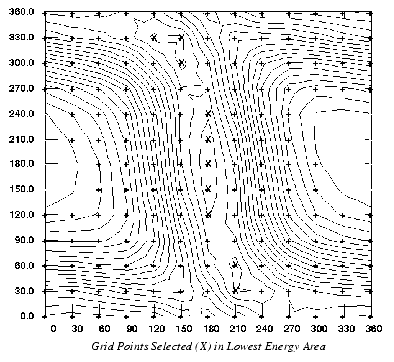
For example, contour plots are generated when Contour Plot is selected from the Plots palette. By selecting Contour Plot, the results of a Grid Scan search can be displayed in a contour plot comparing a property of two torsion angles. In the plot, the angle of one torsion is represented on the x axis of the plot, the angle of the second torsion is represented on the y axis of the plot. A legend to the right of the plot assists in color interpretation by displaying numbers representing the range of the selected property in the same colors as the corresponding contours in the plot.
Contour levels can be displayed in one of three ways:
A maximum of 50 property levels can be used.
The Contour Plot palette provides tools for manipulating data to display in the plot. Table 28 lists and briefly describes the palette selections.
Complete the following exercise to become familiar with the basics of using the Plots palette and, specifically, the Contour Plot selection. This exercise uses search1.msf and the grid2.csr file that was generated in the second Grid Scan search exercise in Chapter 5.
Display the File menu and select Open. From the scrolling list in the File Librarian, select search1.msf.
Select the Replace button, then select the Open button. The structure search1.msf is displayed in the viewing area.
2. Start the Analysis application.
From the Applications menu, select Analysis. A dialog box is displayed permitting the selection of the type of input file to use for analysis. Select:
Select the OK button. A File Librarian dialog box is displayed with a scrolling list of available search files.
Select the file grid2.csr, then select the Open button.
From the Analysis palette, select Show Table.
A potential energy table containing all 144 conformations (scrolling table) is displayed. The Analysis and Plots palettes replace the Modeling palette and supplement the display of the Geometry palette. A tag associated with search1 is displayed in the upper-left corner of the viewing area and a potential energy is displayed in the upper-right corner.
From the Plots palette, select Contour Plot. A dialog box is displayed, permitting the selection of the property to plot.
Select the OK button. A dialog box is displayed, allowing the choice of the torsion angles to plot.
Select the Torsion Angle for the X Axis option:
2:c3[1]-C4[1]-O9[1]-H13[1]
Select the Torsion Angle for the Y Axis option:
3:c4[1]-C5[1]-O11[1]-H12[1]
Select the Apply button. The Contour Plot palette and the plot are displayed. The contour levels indicate the potential energy for each conformation.
4. Smooth color to reflect energy values of contour levels.
Move the cursor into the command line of the Molecule window behind the plot window.
> set color smooth
This is the command equivalent to selecting Blue to Red Smooth Range from Color Definitions in the Preferences menu. Changes may not show until Redraw is selected in the Contour Plot palette.
5. Display grid points on the plot.
From the Contour Plot palette, select Display Grid Points. The tool is checked and highlighted.
From the Contour Plot palette, select Redraw. The plot is redisplayed with grid points. The colors of the contour levels are changed so the low energy conformation levels are represented by blue and the high energy conformation levels are represented by red.
Redraw remains checked and highlighted. The plot is redrawn each time a change is made.
6. Select conformations with the lowest potential energy values.
From the Contour Plot palette, select Select Subset of Structures. The message line reads:
Move the mouse so the cursor is over a grid point located in the lowest energy contour. Click the left mouse button. The grid point is marked with an X, indicating the conformation has been selected.
Continue selecting grid points (conformations) located in or near the lowest energy contour level. When all conformations are selected, move the mouse until the cursor is outside the plot but still inside the plot window. Click the left mouse button. The selection process is concluded. The message line indicates the number of structures that have been selected.
From the Contour Plot palette, select Exit Plots. The plot and the Contour Plot palette are removed from the screen.
From the Analysis palette, select File Options/Filters. A dialog box is displayed offering several options for processing files.
Select the OK button. A dialog box is displayed, offering options for saving the conformation.
Select the OK button. A File Librarian dialog box is displayed. Enter the name grid2_low_energy for the file to contain the structure subset.
Select the Save button. The conformations are saved as the new file grid2_low_energy.csr.
8. Display the structures contained in the new file.
From the Analysis palette, select Use Selected Structures. The selection is checked and highlighted.
Select First Structure. The first structure of the selected subset of structures is displayed.
Several times select Next Structure. Each conformation in the selected set of structures is displayed.
9. Exit the Analysis application.
From the Analysis palette, select Exit Analysis. The Analysis and Plot palettes are removed from the screen. The Modeling palette is redisplayed.
The search1 structure is displayed in the viewing area. The associated tag and energy are no longer displayed.
With the mouse in the Molecule window, type the command:
> Set color atom
The structure is redisplayed in the original atom colors. The coordinates are not saved in a .msf file.
Conformations can be processed to update pre-existing search or dynamics files without running a search procedure. For example, when a structure does not converge to a real minimum, additional cycles of energy minimization can be carried out.
In the Analysis palette, the File Options/Filters selection provides access to further processing functions. In addition, this selection provides options for filing and tagging operations. When File Options is selected, a dialog box is displayed with a set of options. Table 29 lists and briefly describes the options.
Process Conformations is the selection to choose to read conformations from an existing search or dynamics trajectory file and perform calculations on each conformation in the file. This selection does not require any torsions to be defined.
When Process Conformations is selected, a File Librarian is displayed to choose an input structure file. Then another File Librarian is displayed to choose the output structure file. After the files are specified, a dialog box asks if a tag should be assigned to identify the set of conformations. A tag is useful to identify the procedure used to generate a particular set of conformations. The tag remains part of the conformation definition throughout the search and analysis procedures.
Finally, the calculations that process the conformation are selected from a dialog box. The calculations that can be applied to each structure include CHARMm energy, CHARMm energy minimizations, and CHARMm burst dynamics. In addition, a CHARMm command script can be applied.
When the CHARMm Burst Dynamics for Each Structure option is selected, a quick dynamics simulation is performed on each conformation if the energy of the conformation does not exceed a specified limit. This option is always calculated before an energy minimization is performed. When this option is set, a dialog box is displayed to specify the temperature, number of steps, and energy upper limit to be employed in the calculation If the initial energy of the conformation exceeds the upper limit, the burst dynamics calculation is not performed.
When the conformations are processed, the CHARMm energy for each conformation is displayed in the upper right corner of the viewing area. The tag identifying each conformation, is displayed in the upper-left corner. To terminate calculation, click any mouse button. Processing is interrupted and a dialog box is displayed to specify if the calculations should be continued or terminated
When you select Overlay Structures from the Analysis palette, the Overlay Structures palette is displayed. This palette has selections that create and manipulate overlaid structures in the viewing area. When this palette is open, the Analysis, Plots, and Geometry palettes are not available.
Selections on this palette enable comparison of structures, clustering of the structures into groups, least squares fitting of structures using optimal multiple superposition and simultaneous display of all the structures. Table 30 lists and briefly describes the palette selections.
Complete the following exercise to become familiar with Overlay Structures functionality. This exercise uses the results of the Random Sampling search completed in Chapter 5 on the structure, search1. The Random Sampling search used all six torsions contained in search1.msf for its search procedure. Each torsion was sampled 25 times within a rotational range of 60°. The results of this search are stored in the search file random.csr.
Display the File menu and select the Open function.
Select the file search1.msf from the scrolling list.
Select the Replace button and then the Open button. The structure search1 is displayed in the viewing area.
Display the Applications menu. Select the Analysis function. A dialog box is displayed permitting you to select the type of input file to analyze.
Select the OK button. A File Librarian dialog box is displayed listing the available search files in the current directory.
Select the file random.csr from the scrolling list.
Select the Open button. The Analysis Property Table, listing all the random.csr conformations and their respective potential energies, is displayed in the viewing area in a separate window. The Analysis and Plots palettes replace the Modeling palette and supplement the display of the Geometry palette.
The search file random.csr is used as the file for analysis. The first conformation from this file is displayed in the viewing area and is tagged as search1.msf;1.
3. Select Atoms to define a common framework.
From the Analysis palette, select Overlay Structures. The Analysis, Plots, and Geometry palettes are removed from the screen. The Overlay Structures palette is displayed.
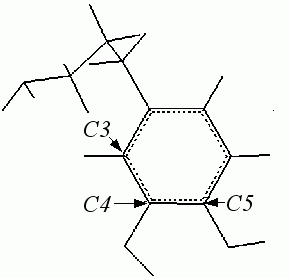
From the Overlay Structures palette, select Select Atom Subset for Fit... The Overlay Structures palette is removed and the Select Atoms and Selection Utilities palettes are displayed. These palettes are identical to the Active Atoms and Active Atoms Utilities palettes (described in QUANTA Basic Operations). From the Select Atoms palette, select Pick Atom and Include.
Pick the following atoms by clicking each:
atom C3 PHEN:1
atom C4 PHEN:1
atom C5 PHEN:1
Each atom is identified in the viewing area with a corresponding label and a colored dot.
From the Select Atom palette, select Finish. The selection palettes are removed and the Overlay Structures palette is redisplayed.
4. Display all conformations to common frame.
From the Overlay Structures palette, select Least Squares Fit to Common Frame. After a short interval, all conformations in random.csr are displayed with each structure showing the three selected atoms in the same location. All other atoms are placed accordingly.
Visual inspection of the overlaid structures show the areas of conformational space that have been sampled during the search. A new file containing modified coordinates corresponding to the overlay, random_ovrly1.csr, is created and becomes the current analysis file.
This new .csr file contains the same molecular conformations as the previous file, but each molecule has been rotated and translated as a whole to obtain an optimum fit for the three atoms selected to define the common frame.
Select Exit Overlay Structures. The Overlay Structures palette is removed from the screen. The Analysis, Plots, and Geometry palettes are redisplayed. The first conformation (search1_msf:1) is displayed in the viewing area.
A variety of 2D plots are available with this application, supplying a variety of tools for visualizing data and for selecting subsets of structures based on property values. Plots are created in a separate window with their own pull-down menus, containing additional tools for plot manipulation. Different properties can be plotted and union and intersection tools allow conformation selection to span multiple properties.
Properties available for plotting are those originally present in the search or dynamics file and those defined using the torsions, interatomic distances, and calculate properties tools. Values for these properties may be assigned to the x axis and/or y axis of two-dimensional scatter plots.
Conformations generated during the random sampling search include the base structure. To analyze only the conformations that result from the search, create a subset that excludes the base structure and includes all others.
Complete the following exercise to create a subset of search1 conformations for analysis. Before proceeding, be sure that the Analysis application is active, the file search1.msf is displayed in the viewing area, and random_ovrly1.csr is the current search file. If you have completed the previous section of this chapter, you are ready to continue with this exercise.
1. Display a potential energy trace.
From the Plots palette, select Trace. A dialog box is displayed, permitting the selection of a property to plot.
Select the OK button. The trace plot is displayed. The x axis represents the number of conformations. The y axis represents potential energy values for the conformations. The plot shows a sharp decrease in energy from the first conformation to the second.
2. Define conformations to be generated in the random sampling search.
In the Plot window, display the Trace Tools menu. Select Select X Range.
Click on the point in the plot representing the second conformation in random_overly1.csr.
Click the point in the plot representing the last conformation in random_ovrly1.csr. Selected points are marked with a plus sign.
A message in the upper-left corner of the viewing area reads:
The selection of the conformational subset is completed.
Display the Plot Window File menu and select the Quit function. The plot is removed from the screen.
3. Save the subset of conformations.
From the Analysis palette, select File Options/Filters. A dialog box providing options for manipulating files is displayed. Select the option:
Select the OK button. A new dialog box is displayed.
Select the OK button. A File Librarian dialog box is displayed.
in the data entry field. The existing file, random.csr, is overwritten.
4. Use the new version of random.csr.
From the Analysis palette, select File Options/Filters. A dialog box is displayed, offering several options.
Select the OK button. A dialog box is displayed, asking what type of file to use for analysis.
Select the OK button. A File Librarian is displayed listing the available search files in the current directory.
Select the file random.csr from the scrolling list.
Select the Open button. The updated random.csr becomes the current search file. The tag in the upper-left corner of the viewing area shows search1_msf:2, indicating the second conformation, from the original file is now the first conformation in the search file.
5. Display a potential energy trace of the new file.
Display the Plots palette and select Trace... A dialog box is displayed offering an opportunity to select the property to plot.
Select the OK button. The trace plot is displayed. Compare it with the previous plot.
Display the Plot Window File menu, select the Quit function. The Plot window is removed.
Selecting Range Map from the Plots palette creates a plot for visually assessing the variation of torsion angles or interatomic distances in a collection of conformations. The x axis in the range map represents the torsion angle number or interatomic distance. The y axis represents the torsion angle value or interatomic distance. The plot consists of a set of horizontal tick marks where each mark represents a value of a property in each conformation. When the values are plotted, the range spanned by each torsion angle or interatomic distance is evident, and the density of tick marks help to visualize the number of conformations having a torsion angle or interatomic distance in a given range.
1. Select torsions for plotting.
From the Analysis palette, select Torsions. The Torsions palette supplements the display of the Analysis, Plots, and Geometry palettes.
From the Torsions palette, select Define All Torsions. The message line displays:
The following torsion definitions are reported in the textport:
Select Exit Torsions. The Torsions palette is cleared from the screen. Range Map is activated (but not selected).
From the Plots palette, select Range Map. A plot is displayed showing six torsions and the associated conformations that constitute the range of torsional values sampled in each minimized structure.
Scatter Plot creates a plot of any two properties for all conformations in the file under analysis. When Scatter Plot is selected, a dialog box is displayed, permitting the choice of the property to be assigned to the x axis. A second dialog box is then displayed, permitting the choice of the property to be assigned to the y axis.
The plot consists of a set of points. Each point represents a conformation with the corresponding property values given by the coordinates of that point. When the plot is displayed in the viewing area, the Scatter Plot palette is displayed. It is used to change the plot dimensions, make structure selections, and make a hard copy of the plot.
When you are observing cyclical characteristics of torsion rotations in 2D space plots, select the scale and range carefully. A conformation showing an angle of 1° and another conformation showing an angle of 360° are placed at extreme ends of a plot if a scale of 0° to 360° is chosen. In reality, there is only 1° difference between these two conformations.
Alternatively, data could be displayed showing a 360° rotational range using a -180° to 180° scale. The effects of repeated 360° rotations can be displayed as a scatter plot using a cumulative scale. In this situation, for example, torsion angle at 30° after one full rotation would be shown on the plot as 390°. Plotting search results using a different 360° rotational scale makes it possible to change the location of conformations in a plot and compare the same search results using a different format.
Table 31 lists and briefly describes the palette selections.
Complete the following exercise to become familiar with generating and manipulating a scatter plot.
From the Plots palette, select Scatter Plot. A dialog box is displayed to permit selection of the property for the x axis.
Select the OK button. A dialog box is displayed to permit you to select the torsion to display along the x axis.
Select the OK button. A dialog box is displayed to permit you to select the property to be displayed on the y axis.
Select the OK button. A dialog box is displayed to permit you to select the torsion to display along the y axis.
Select the OK button. The Scatter Plot is displayed.
2. Change the torsion value scale of the x and y axes.
From the Plot window, open the Scatter Tools menu.
Select Set 360 deg Scale. The scale of both axes are changed to 0 to 360. The location of the conformations in the plot change, based on the new scale.
Display the File menu and select Quit.
A scatter plot generally shows several regions sampled by a conformational search. Different regions may correspond to different energies and have different statistical weights. Statistical weights are not indicated in the scatter plot.
A correlation map adds a third dimension to a 2D plot by using contours to delineate regions of statistical weight based on the Boltzmann factor. The more dense the contours, the higher the statistical weight of a region. These regions can also be identified by color if the color definition is set to a smooth range. In this case, red represents regions of the highest statistical weight and blue represents regions of the lowest statistical weight. The empty spaces represent zero statistical weight.
Any two properties for all conformations can be plotted including:
When the plot is displayed in the viewing area, a palette is displayed offering selections to change the plotting properties of the x and y axes, alter the format used to label intervals on these axes, and generate of a hard copy of the plot.
Table 32 lists and briefly describes the palette selections.
Complete the following exercise to become familiar with the procedure for generating a correlation map.
Display the Plots palette and select Correlation Map. A dialog box is displayed to permit selection of the property to be displayed on the x axis.
Select the OK button. A dialog box is displayed to permit selection of the torsion to display along the y axis.
Select the OK button. The correlation map and the Correlation Map palette are displayed.
2. Smooth color to reflect statistical weights of contour levels.
Move the cursor into the QUANTA window. Enter the following in the command line:
> set color smooth
This is the command equivalent of selecting Blue to Red in the Color Definitions pull-right menu of the Preferences menu. The colors of the contour levels are changed so that the low statistical weight conformation levels are represented by blue and the high statistical weight conformation levels are represented by red.
3. Change the property plotted in the map.
Display the Correlation Map palette and select Select Property Pair. A dialog box is displayed to permit selection of the property to be displayed on the x axis.
Select the OK button. A dialog box is displayed to permit selection of the property to be displayed on the y axis.
Select the OK button. The plot is redrawn, showing potential energy correlation between the torsions tor5(1) and tor6(1).
Enter the following in the command line:
> set color atom
This is the command equivalent to selecting Reset All in the Color Definitions pull-right menu of the Preferences menu. All structure colors are returned to their default colors.
5. Clear the correlation map from the screen.
Display the Correlation Map palette and select Exit Correlation Map. The map and the palette are removed from the screen.
6. Exit the Analysis application.
From the Analysis palette, select Exit Analysis. The Analysis and Plots palettes are removed from the screen and the Modeling palette is redisplayed.
It is possible to compare all structures in the file under analysis with structures in other search or dynamics files. The files selected for comparison do not need to be generated from the same MSF.
When data in both files pertains to the same structure, the comparison can be performed on the basis of either a set of defined distances, torsions, or least squares superposition. If the two files contain coordinates for different structures, the comparison may be done on analogous torsion angles. Distances cannot be compared.
In either case, each structure in the file under analysis is sequentially compared to each structure in the selected search or dynamics file. Pair-wise root mean square differences (rmsd) between the structures in the file under analysis and the comparison file are computed and presented in an rmsd histogram upon completion of the calculation.
The x axis of this plot represents the rmsd. The Y axis represents the number of structure pairs with a given rmsd. From these results, it is possible to determine if the current analysis file contains any structures that are similar to any of those in the comparison file, or if the analysis file contains structures that are not found in the comparison file.
Whenever an rmsd between a given structure pair is below a specified threshold, the structure pairs are considered similar to each other. The classification of structure pairs as similar or dissimilar can be changed by supplying a different rmsd threshold value. Decreasing the threshold value, decreases the number of similar structure pairs. Increasing the threshold increases the number of similar structure pairs.
The threshold can be reset repeatedly and the selections can be reclassified. The selected structures, corresponding to the last comparison, can be saved and reviewed with any of the browsing selections or with plots.
The Compare Files palette contains selections for setting rmsd threshold values and structure selection. Table 33 lists and briefly describes the palette selections.
Complete the following exercise to become familiar with procedures for comparing conformations from two .csr or .DCD files.
Display the File menu and select Open. A File Librarian dialog box is displayed.
Select CCK7.msf from the scrolling list of files.
Select the Open button. The structure CCK7.msf is displayed in the viewing area.
Display the Applications menu and select Analysis. A dialog box is displayed to permit selection of the type of input file to analyze.
Select the OK button. A File Librarian dialog box is displayed listing the available search files in the current directory.
Select flip.csr from the scrolling list. Select the Open button. The Analysis and Plots palettes replace the Modeling palette and supplement the Geometry palette. The search file flip.csr is used as the file for analysis.
3. Select torsions for plotting.
Display the Analysis palette and select Torsions. The Torsions palette supplements the display of the Analysis, Plots, and Geometry palettes.
From the Torsions palette, select Define All Torsions.
Definitions for these torsions are listed in the textport.
Select Exit Torsions. The Torsions palette is cleared from the screen.
4. Compare results of the Boltzmann Jump and Peptide Flip searches.
From the Analysis palette, select Overlay Structures. The Overlay Structures palette is displayed.
From the Overlay Structures palette, select Compare Files. A dialog box is displayed asking if the structures contained in the .csr files for comparison are chemically identical. If the same base MSF is used for comparison, the structure is considered chemically identical. If different MSFs are used, the structures are not chemically identical, and the File Librarian prompts for the name of the second MSF.
Select the Yes button. A dialog box is displayed, to choose the basis for comparison.
Select the OK button. A dialog box is displayed to permit selection of the type of file template to compare with the current file (flip.csr).
Select the OK button. A File Librarian dialog box is displayed.
Select jump.csr from the scrolling list.
Select the Open button. An rmsd histogram showing the pair-wise rms differences between the structures in flip.csr and jump.csr is displayed along with the Compare Files palette. By default, the rmsd threshold is set at:
where rmsmin and rmsmax are the lowest and highest rmsd values found in the histogram.
5. Define comparison specifications.
From the Compare Files palette, select Select Similar Structures. The following information is reported in the textport:
Since a user-defined threshold value is not specified, the number of similar structures is based on the default threshold value.
Using the default threshold value, there are nine structures in flip.csr that are similar to structures in jump.csr. The rest of the structures in flip.csr are different from all the structures in jump.csr.
Select Exit Compare Files. The Compare Files palette and the histogram are removed from the screen.
Select Exit Overlay Structures. The Overlay Structures palette is removed from the screen. The first conformation is displayed in the viewing area.
6. Display similar structures in a scatter plot.
From the Plots palette, select Scatter Plot. A dialog box is displayed to permit selection of the property to be displayed on the x axis.
Select the OK button. A dialog box is displayed to permit selection of the torsion to display along the x axis.
Select the OK button. A dialog box is displayed to permit selection of the property to be displayed on the y axis.
Select the OK button. A dialog box is displayed to permit selection of the torsion to display along the y axis.
Select the OK button. The plot is displayed along with the Scatter Plot palette. Plus signs on the plot indicate conformations from the Peptide Flip search that are similar to some conformations from the Boltzmann Jump search.
From the Scatter Plot palette, select Quit. The plot and the palette are removed from the screen. The Analysis and Plot palettes are redisplayed.
From the Analysis palette, select Exit Analysis. The Analysis and Plot palettes are removed from the screen and CCK7 is displayed in the viewing area.
The Analysis application provides the ability to classify all conformations in a .csr or .DCD file into families by calculating all pair-wise RMS differences among structures using torsion angles, interatomic distances, or least squares superposition as the basis for calculation. By selecting Generate Clusters in the Overlay Structures palette, you begin the process. When you make this selection, the Generate Clusters palette is displayed. Table 34 lists and briefly describes the palette selections.
To classify structures into conformational groups, you must establish an rmsd threshold as a similarity criterion. The following algorithm for classifying and grouping conformations is employed in QUANTA:
1. Choose a basis for comparing conformations by computing rmsd values in selected torsion angles or interatomic distances. Alternatively, compute rmsd values in Cartesian coordinates of all atoms or a subset of atoms using least squares superposition. If there are N conformations to be analyzed, there are N(N-1)/2 rmsd that can be computed.
2. Choose a threshold value of rms below which a conformational pair will be considered similar for the purpose of the algorithm. If the rmsd between a pair conformations exceeds the threshold, they are considered dissimilar.
3. From a list of all conformations, choose the lowest energy conformer and remove it from the list. This conformation is taken to be the nucleus of a cluster.
4. Examine the rmsds between this conformation and the remaining conformations in the list. If a conformation in the list has an rmsd with this nucleus that is less than the chosen threshold value, it is removed from the list and added to the first cluster. this is done until there are no more structures in the list with an RMS less than the threshold. At this point, a cluster is formed containing all the conformations similar to the lowest energy conformation.
5. Choose the lowest energy conformer from the remaining conformers. Start a new cluster with this structure as the nucleus.
6. Repeat Step 4 until the definition of the new cluster is complete.
7. Repeat Steps 5 and 6 until there are no more conformations in the list.
This sequence of steps describes the algorithm principles used in generating clusters. In practice, the list of generated clusters is not presented in sorted order. This means that cluster 1 is not necessarily the one that contains the lowest energy structure.
In the clustering procedure, the energy of the conformers plays a key role in the choice of the nucleus of each cluster. When the nucleus is chosen, the membership is decided purely on the basis of the rmsds with the nucleus. Note that two conformers with an rmsd between them exceeding the threshold may enter the same cluster as long their RMSDs with the nucleus is less than the threshold.
As the process proceeds, a range of possible threshold values is sampled. At the end of the process, a plot of the number of clusters versus the threshold values is displayed. The final number of clusters that are obtained from the procedure depends on the value of the threshold that you close by double clicking on the value in the plot. Alternatively, you may enter a threshold value in a dialog box by selecting Set RMS Clustering Threshold in the Generate Clusters palette.
At the end of the process, results can be displayed in a rmsd histogram. This histogram plots the number of pairs of conformations with a given rmsd against the rmsd. it delineates the range of rmsds seen in the set of conformations.
Large peaks in this histogram correspond to rms values found among large number of conformational pairs. The distribution of conformational pairs gives some idea of the range of variation in the rmsd. It helps you to choose a threshold value for the rmsd. The threshold value is needed for performing cluster analysis.
The histogram provides valuable clues regarding what may be too small or too large a value for the threshold. If a pronounced peak is seen in the histogram corresponding to an rms value of Rmax, setting a threshold equal to Rmax will not successfully separate most of the conformational pairs into different clusters. Very few clusters are generated, in this case. Setting a threshold at a smaller value than Rmax gives rise to a reasonable number of clusters. The conformational pairs giving rise to rmsds of roughly Rmax are partitioned into different clusters.
As an example, consider the simple case of a collection of conformations that fall into two clusters such as the ones schematically shown in diagram A. The rmsds between members of the same cluster are much smaller than the rmsds between members belonging to different clusters. Therefore, you might expect the rmsd histogram to have two peaks, one corresponding to intracluster rmsds and the other corresponding to intercluster rmsds. (See diagram B.) If you expected to get the two clusters seen in the drawing, then the threshold must be set somewhere between the two peaks, as indicated by the bold arrow.
Select Clusters appears active in the Generate Clusters palette after structures are clustered. If this selection is made, a dialog box is displayed.
All the structures belonging to a specific cluster or the lowest energy structures from all clusters can be selected. The latter option selects all the cluster nuclei. When this is done, selected structures are viewed using browsing tools or with graph analysis tools.
Complete the following exercise to become familiar with the procedures for generating and analyzing clusters. Before you begin, be sure that CCK7.msf is displayed in the viewing area.
Display the Applications menu and select Analysis. A dialog box is displayed to permits selection of the type of input file to analyze.
Select the OK button. A File Librarian dialog box is displayed, listing the available search files in the current directory.
Select flip.csr from the scrolling list. Select the Open button. The Analysis and Plots palettes replace the Modeling palette and supplement the Geometry palette. The search file flip.csr is used as the file for analysis.
2. Define clustering specifications.
From the Analysis palette, select Overlay Structures. The Overlay Structures palette is displayed.
From the Overlay Structures palette, select Generate Clusters.
From the Generate Clusters palette, select Define Torsions. The Torsions palette is displayed.
From the Torsions palette, select Define All Torsions. Then select Exit Torsions. The Torsions palette is removed and the Generate Clusters palette is redisplayed.
From the Generate Clusters palette, select Clustering by Torsions. The textport lists threshold values and the number of clusters that will be produced for each value. When the calculation is complete, a histogram of the number of clusters versus the clustering threshold is displayed in a separate window. The message line reads:
Double-click the threshold value you want to select in the x axis. The textport reports the trial clustering threshold value and the number of clusters that will be generated. If there are more than five clusters, repeat the process, selecting a lower threshold value.
From the Generate Clusters palette, select Set RMS Clustering Threshold. A dialog box is displayed that reports the current threshold value, the maximum and minimum rmsds, and the number of clusters that will be generated with these values. The information should coincide with the information in the textport for your last threshold value selection.
Select the OK button. The dialog box is removed.
Select Exit Generate Clusters. The histogram and the Generate Clusters palette are removed from the screen. The Overlay Structures palette is redisplayed.
4. Display generated clusters.
From the Overlay Structures palette, select All Clusters. The structures, representing the nuclei structures, are overlaid in the viewing area.
Select Next Cluster. The conformations composing the first cluster are overlaid in the viewing area. The number of structures selected is reported in the upper-left corner of the viewing area. A maximum of 150 structures can be shown simultaneously.
Again select Next Cluster. The conformations composing the second cluster are overlaid in the viewing area.
Select Next Cluster several more times. Clusters continue to be displayed in ascending order, based on the order in which they were defined.
Select Exit Overlay Structures. The palette is removed from the screen.
5. Exit the Analysis application.
From the Analysis palette, select Exit Analysis. The Analysis and Plots palettes are removed from the screen and the Modeling palette is redisplayed.
The Dynamics Animation application simulates the natural motion of a molecular structure, producing a set of coordinates and velocities that describe atomic motions of that structure through time. Using CHARMm dynamics, calculations are performed for heating, equilibration, and simulation stages of dynamics. The results of these calculations are saved in trajectory files. A separate trajectory file is created for each stage.
In the heating stage of a dynamics run, as kinetic energy is added to the structure, CHARMm potential energy and total energy increases proportionately. This can be illustrated in Analysis on a plot. In the plot, the x axis indicates the number of conformations while the y axis cycles through representations of temperature, potential energy, kinetic energy, and total energy.
In the second stage of a dynamics run, equilibration is achieved by allowing the structure to evolve spontaneously for a period of time by integrating the equations of motion until the average temperature and structure remain stable. Equilibration is facilitated by periodically scaling the velocities appropriate to the desired temperature. Generally, the procedure is continued until various statistical properties of the structure become independent of time.
Potential energies decrease in value during equilibration, as do the total energy values when more stable conformations are found. Kinetic energy and temperature both fluctuate as a result of velocities being scaled to the desired temperature. Fluctuations are illustrated by creating plots, cycling through representations of potential energy, kinetic energy, total energy, and temperature.
Simulation takes an equilibrated structure as its starting point and produces a dynamics trajectory. In a typical simulation, the trajectory traces the motion of the structure through a specific period of time. As with energy minimization, provision is made to update the nonbonded and hydrogen bonded lists periodically.
Trajectory file analysis uses the same methods as analysis of a conformational search file. You can browse through all conformations. You can inspect the results of any stage of dynamics at any time. You can create any number of two-dimensional plots and save any conformation into an MSF.
When the results of the various stages of dynamics are analyzed, you can determine the effects of a particular stage on additional properties such as dipole moment and radius of gyration. Any number of properties can be plotted using any of the trajectory files.
Analysis is not limited to one trajectory file. Trajectory files can be concatenated to concurrently view the results of all three stages of dynamics. Concatenation creates a composite .csr file. Since a .csr file stores only energy and coordinates, some dynamics-related information such as time step is lost. In the plot of a concatenated file, the x axis shows the total number of conformations contained in the files, and the y axis shows values of the property selected for plotting.
Complete the following exercise to become familiar with the process for analyzing trajectory files. For this exercise, you need the MSF mypeptide.msf, created in Chapter 4 of QUANTA Generating and Displaying Molecules. You also need the dynamics files, mypep_h.DCD, mypep_e.DCD, and mypep_s.DCD created in Chapter 1 of this book.
Display the File menu and select the Open function. A File Librarian dialog box opens.
Select mypeptide.msf from the scrolling list.
Select the Replace button, then the Open button. The structure mypeptide.msf is displayed in the viewing area.
2. Start Analysis and open the heating dynamics file mypep_h.dcd.
Display the Applications menu. Select the Analysis function. A dialog box is displayed to permit selection of the type of input file to analyze.
Select the OK button. A File Librarian dialog box is displayed.
Select mypep_h.DCD from the scrolling list, then select the Open button. The Analysis and Plots palettes replace the Modeling palette and supplement the display of the Geometry palette. The first conformation in mypep_h.dcd is displayed in the viewing area along with the tag mypep_h.DCD:1. The message line displays:
If the file mypeph.ENE is present, it is automatically read. If the .ENE file is not present in the current directory, a File Librarian is displayed to permit selection of the .ENE file from a different directory. Since the .ENE file contains conformational energies (and pressures), energy analysis cannot be done if an .ENE file is not used.
3. Display all conformations in mypep_h.DCD.
From the Analysis palette, select Auto Browse. Each conformation in mypep_h.DCD is automatically displayed in the viewing area in sequential order, replicating the Dynamics Animation display. The automatic browsing procedure stops when the last conformation in the trajectory file is displayed.
4. Display a trace of temperature during heating.
From the Plots palette, select Trace... A dialog box is displayed, to permits selection of the property to plot.
Select the OK button. The Trace plot is displayed, showing the number of conformations on the x axis and temperature values on the y axis. The plot shows a steady increase in temperature as kinetic energy is added to the structure during the heating stage.
5. Display a trace of potential energy during heating.
Display the Trace Tools menu. Select the Next Property function. The property plotted on the y axis changes to CHARMm potential energy. The plot shows a steady increase in potential energy as kinetic energy is added to the structure during the heating stage.
6. Display a trace of kinetic energy during heating.
Select Next Item again. The property plotted on the y axis changes to CHARMm kinetic energy. The plot shows the steady increase of kinetic energy added to the structure during the heating stage.
7. Display a trace of total energy during heating.
Select Next Item again. The property plotted on the y axis changes to CHARMm total energy. The plot shows a steady increase in total energy as kinetic energy is added to the structure during the heating stage.
8. Redisplay a trace of temperature during heating.
Select Next Item again. The y axis property returns to temperature.
Display the Trace File menu and select Quit. The plot is removed from the screen.
9. Open the equilibration dynamics file mypep_e.DCD.
From the Analysis palette select File Options/Filters. A dialog box is displayed to permit changing of the trajectory file in use.
Select the OK button. A dialog box is displayed, prompting for the selection of the type of input file.
Select the OK button. A File Librarian dialog box is displayed.
Select mypep_e.DCD and then select the Open button. The first conformation in mypep_e.DCD is displayed in the viewing area along with the tag mypep_e.DCD:1. The message line displays:
10. Display a trace of potential energy during equilibration.
From the Plots palette select Trace. A dialog box is displayed, permitting the selection of the property to plot.
Select the OK button. The Trace plot is displayed, showing the number of conformations on the x axis and CHARMm potential energy values on the y axis. The plot shows a steady decrease in potential energy during the equilibration stage.
11. Display a trace of kinetic energy during equilibration.
Display the Trace Tools menu and select Next Item. The property plotted on the y axis changes to CHARMm kinetic energy. The plot shows fluctuations in kinetic energy during the equilibration stage.
12. Display a trace of total energy during equilibration.
Select Next Item again. The property plotted on the y axis changes to CHARMm total energy. The plot shows a drop in total energy as more stable conformations are found during the equilibration stage.
13. Display a trace of temperature during equilibration.
Select Next Item again. The property plotted on the y axis changes to temperature. The plot shows that although temperatures fluctuate during the equilibration stage, an overall decrease in temperature is realized.
Display the File menu. Select Quit. The plot is removed from the screen.
14. Open the simulation dynamics file mypep_s.DCD.
Display the Analysis palette. Select File Options/Filters. A dialog box is displayed to permit the trajectory file in use to be changed.
Select the OK button. A dialog box is displayed to permit the type of input file to be chosen.
Select the OK button. A File Librarian dialog box is displayed.
Select mypep_s.DCD, then select the Open button. The first conformation in mypep_s.DCD is displayed in the viewing area along with the tag mypep_s.DCD:1. The message line reads:
15. Display a trace of potential energy during simulation.
Display the Plots palette and select Trace... A dialog box is displayed to permit selection of the property to plot.
Select the OK button. The Trace palette and the plot are displayed, showing the number of conformations on the x axis and CHARMm potential energy values on the y axis. The plot shows a steady decrease in potential energy during the simulation stage.
16. Display a trace of kinetic energy during simulation.
Display the Trace Tools menu and select Next Property. The property plotted on the y axis changes to CHARMm kinetic energy. The plot shows a steady increase in kinetic energy during the simulation stage.
17. Display a trace of total energy during simulation.
Select Next Property again. The property plotted on the y axis changes to CHARMm total energy. The plot shows a fluctuation in total energy during the simulation stage. Although these fluctuations appears quite dramatic when plotted, the scale of the Y axis shows these fluctuations are small.
18. Display a trace of temperature during simulation.
Select Next Property again. The property plotted on the y axis changes to temperature. The plot shows a steady increase in temperature during the simulation stage.
Display the File menu and select the Quit function. The plot is removed from the screen.
19. Define the Dipole Moment property for analysis.
From the Analysis palette, select Calculate Properties. A dialog box is displayed to permit selection of the properties to define. The list of options available varies, depending the structure being studied, for example, a polymer versus a monomer.
Select the OK button. The dialog box is removed from the screen and the dipole moment property is defined for all the conformations included in mypep_s.DCD.
20. Display a trace of dipole moment during simulation.
From the Plots palette, select Trace. The dialog box is displayed to permit selection of the property to plot. Since the dipole moment property is now defined, the Dipole Moment option has been added to the dialog box.
Select the OK button. The Trace palette and the plot are displayed, showing the number of conformations on the x axis and dipole moment values on the y axis. The plot shows a decrease in dipole moment as more stable conformations are found during the simulation stage.
Display the File menu, and select the Quit function. The plot is removed from the screen.
21. Create a single file for analysis from the .DCD files.
From the Analysis palette, select File Options/Filters. A dialog box is displayed to permit changing of the trajectory file in use. Select the option:
Select the OK button. A File Librarian dialog box is displayed to permit creation of a new search file (.csr), containing the concatenated trajectory files.
Enter the name mypep_all and select the Save button. A dialog box is displayed to permit selection of the type of input file. Select the option:
Select the OK button. A File Librarian dialog box is displayed to permit selection of the first file to be concatenated.
Select mypep_h.DCD, then select the Open button. A dialog box is displayed to permit selection of the type of input file. Select the option:
Select the OK button. A File Librarian dialog box is displayed to permit selection of the second file to be concatenated.
Select mypep_e.DCD, then select the Open button.
Select the OK button. A File Librarian dialog box is displayed to permit selection of the third file to be concatenated.
Select mypep_s.DCD, then select the Open button. A File Librarian dialog box is displayed to permit selection of the type of input file. Select the Exit button, indicating there are no other files to concatenate into mypep_all.csr. The new file is created and opened as the current analysis file.
22. Display all of the conformations contained in mypep_all.csr.
From the Analysis palette, select Auto Browse. Each conformation in mypep_all is automatically displayed in the viewing area in sequential order, starting with the first conformation of mypep_h.DCD. The automatic browsing procedure stops when the last conformation in mypep_s.DCD is displayed.
23. Define the radius of gyration property for analysis.
From the Analysis palette, select Define Properties. A dialog box is displayed to permit selection of the properties to define.
Select the OK button. The dialog box is removed from the screen and the radius of gyration property is defined for all the conformations included in mypep_all.csr.
24. Display a radius of gyration trace of all dynamics stages.
From the Plots palette, select Trace... A dialog box is displayed to permit selection of the property to plot. Select the option:
Select the OK button. The Trace palette and the plot are displayed, showing the total number of conformations on the x axis and the radius of gyration values on the y axis.
From the Trace File Menu, select Quit.
From the Analysis palette, select Exit Analysis. The Analysis application is exited.
The Analysis application provides tools to read or compute physical properties of conformations generated during conformational search or dynamics simulations. It sorts, selects, and compares the structures using available physical properties data. Trends, correlations, and extremes of the data are revealed through a variety of plotting options. Additional tools are provided so that you may view the structures one at a time or view them overlaid after a least squares fitting procedure is applied. You may also cluster structures into subsets that have common conformational features.
You enter the Analysis applications either directly from the Applications menu or from the Conformational Search palette. Up to 6000 structures can be handled by the Analysis application, but performance is best when smaller datasets are used.
When you start Analysis, conformations in the input file are read and a table of properties is created. Each conformation has an identifying tag that consists of a meaningful prefix and a number that designates its order at the time it was created in the set of conformations.
Initially, the only defined property is energy. In some cases even energy values may not exist. If you only want to browse through the set of conformations, you need no additional properties. To sort structures or plot information about them, you must define additional physical properties such as torsions or distances.
When a set of physical properties is defined, you can use the plots facility and its powerful selection tools to look for structures that satisfy the criteria you specify. The power of the Analysis selections tools is enhanced when you use Intersection from the Analysis palette. This tool allows selections to be based on more than one property.
In the Analysis palette, the File Options selection provides access to further processing functions. In addition, this selection provides options for filing and tagging operations.
The Plots palette provides tools to generate plots of various types from the data supplied in the analysis file. Within the Analysis application, you can generate the following type of plots: property traces, histograms, box range maps, range maps, scatter plots, backbone plots, contour plots, and pair distribution histograms.
After you have specified the properties to be plotted, the plot appears in a new window with its own tools to change plot dimensions, inquire about specific conformations, make conformation selections, and create hard copy output.
When you select Overlay Structures from the Analysis palette, the Overlay Structures palette is displayed. This palette has selections that create and manipulate overlaid structures in the viewing area. Selections on this palette enable comparison of structures, clustering of the structures into groups, least squares fitting of structures using optimal multiple superposition, and simultaneous display of all the structures.
It is possible to compare all structures in the file under analysis with structures in other search or dynamics files. The files selected for comparison do not need to be generated from the same MSF.
When data in both files pertain to the same structure, the comparison can be performed on the basis of a set of defined distances, torsions, or least squares superposition. If the two files contain coordinates for different structures, the comparison may be done on analogous torsion angles. Distances cannot be compared.
In either case, each structure in the file under analysis is sequentially compared to each structure in the selected search or dynamics file. Pair-wise root mean square differences between the structures in the file under analysis and the comparison file are computed and presented in an rmsd histogram when the calculation is completed.
From these results, it is possible to determine if the current analysis file contains any structures that are similar to any of those in the comparison file, or if the analysis file contains structures that are unique compared with all the structures in the comparison file.
The Analysis application also provides the ability to classify all conformations into families by calculating all pair-wise RMSDs among structures using torsion angles, interatomic distances, or least squares superposition. By selecting Generate Clusters in the Overlay Structures palette, you begin the process. When you make this selection, the Generate Clusters palette is displayed.
Trajectory file analysis uses the same methods as analysis of a conformational search file. You can browse through all conformations. You can inspect the results of any stage of dynamics at any time. You can create any number of two-dimensional plots and save any conformation into an MSF.
When the results of the various stages of dynamics are analyzed, you can determine the effects of a particular stage on additional properties such as dipole moment and radius of gyration can be accessed. Any number of properties can be plotted using any of the trajectory files.
Analysis is not limited to one trajectory file. Trajectory files can be concatenated to concurrently view the results of all three stages of dynamics. Concatenation creates a composite .crs file. However, in the process, some dynamics-related information is lost. In the plot of a concatenated file, the x axis shows the total number of conformations contained in the files, and the y axis shows values of the property selected for plotting.