Getting Started
Loading the fMRIPrep Module
The SCC uses a module system to load and access software packages. Refer to our module page for more extensive documentation.
To see all versions of fMRIPrep available on the SCC, you can search for the package with the module command:
[scc4]$ module avail fmriprep

--------------------------- /share/module.8/imaging ----------------------------
   fmriprep/v20.2.5    fmriprep/23.1.4        fmriprep/25.2.5
   fmriprep/v21.0.1    fmriprep/23.2.3 (D)
   fmriprep/22.0.2     fmriprep/24.1.1

  Where:
   D:  Default Module
Note that fmriprep/23.2.3 is the default — the version you get if you do
not name one — and that it is not the newest build. Pin an explicit version in
every script so your analyses stay reproducible. Results are not identical
across fMRIPrep versions, so never change version partway through a study.
To load a specific version of fMRIPrep (25.2.5):
[scc4]$ module load fmriprep/25.2.5
Confirm the load worked:
[scc4]$ fmriprep --version
fMRIPrep v25.2.5
The FreeSurfer License
fMRIPrep uses FreeSurfer, which normally requires you to register for a free
license file and pass it with --fs-license-file.
On the SCC you do not need to do this. The fmriprep module is a wrapper
that supplies a license automatically, so the examples in this guide never
mention one. If you copy a command from the fMRIPrep documentation that sets
--fs-license-file, you can drop that flag.
Your Input Data
Your data must be organized according to the BIDS standard. We recommend using the tools dcm2bids and yaxil to get your data into BIDS format. Please see these help pages for more information.
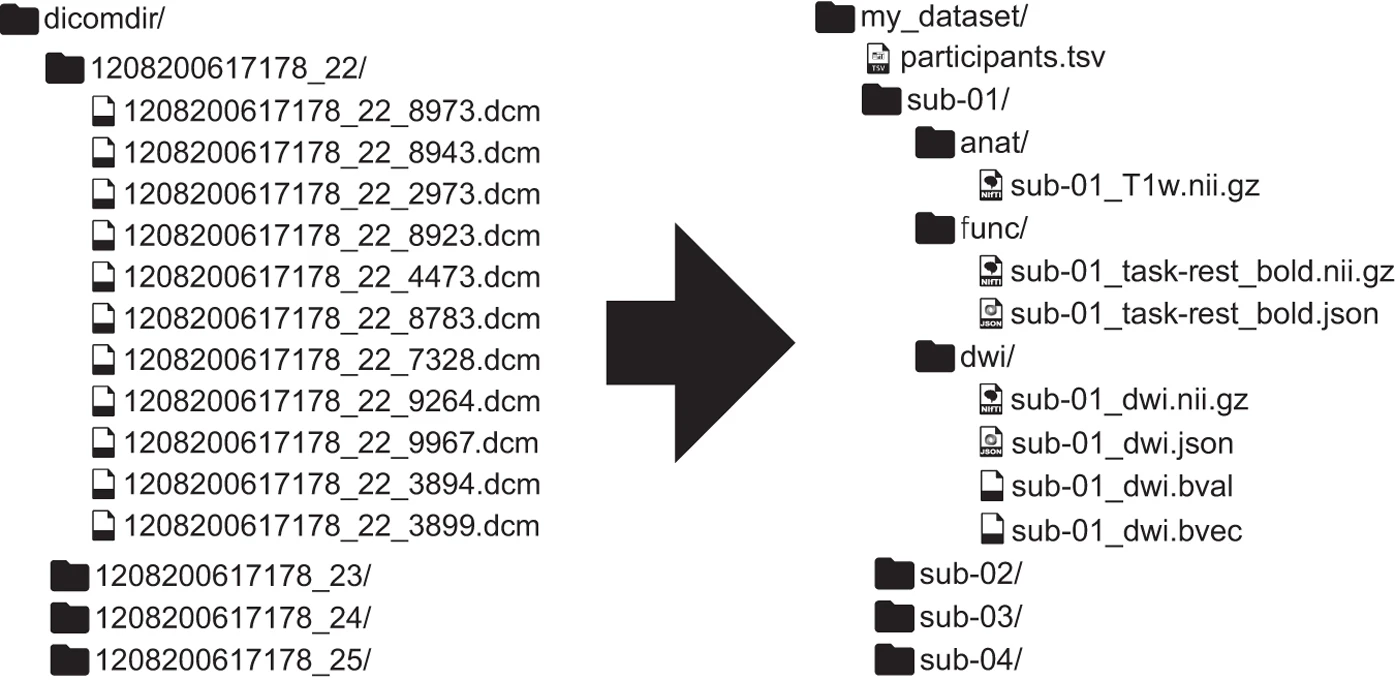
Raw DICOMs as they come off the scanner (left) reorganized into a BIDS dataset (right).