|
X-POWERFIT tutorial |
(1 hour 30 minutes)
The X-POWERFIT application is designed to analyze and interpret electron
density maps of proteins and detect the presence of alpha helices and beta
sheet. The application gives the best results for large maps where the amount
of information presented to the user by either the electron density or bones
can make the C -tracing task daunting. The application has been found
to be useful on maps that are difficult to interpret, but using such a map
for this tutorial would make it too difficult. The X-POWERFIT application
also provides methods to refine secondary structure into electron density
and an extension to the semi automated fitting to automatically trace multiple
residues into density.
-tracing task daunting. The application has been found
to be useful on maps that are difficult to interpret, but using such a map
for this tutorial would make it too difficult. The X-POWERFIT application
also provides methods to refine secondary structure into electron density
and an extension to the semi automated fitting to automatically trace multiple
residues into density.
The tutorial involves the use of three electron density maps of the protein RNAse (1, 2) solved in 1987. The first of these maps represents the exact data used in 1987 to solve the protein structure and forms the basis of the original publication (orginal.mbk). The second map is the same data but density-modified using software developed in 1997 (DMK Cowtan , personal communication) (DM.mbk). The third map is an artificially degraded map, in which the phases are generated using only one derivative to give an SIR map. This map is generally considered to be uninterpretable. The aim is to show that the X-POWERFIT can use electron density maps of varying quality; it is not necessary to use first-quality data to get useful results from this application.
The timingsgiven at the beginning of the numbered tasks indicate the relative amount of time for the actual process described. The times are based on a user who has had previous experience with QUANTA and is working on an R4000 Indigo.
The following files are provided :
(1) Sevcik, J.; Dodson, E.; Dodson, G. G.; Zelinka, J. "The X-ray analysis of ribonuclease Sa.", Metabolism of Nucleic Acids, including Gene Manipulation. Slovak Academy of Science, Bratislava., 33-46 (1987).
(2) Sevcik, J.; Dodson, E.; Dodson, G. G."Determination and restrained
least-squares refinement of the crystal structures of ribonuclease Sa and
its complex with 3'guanylic acid at 1.8 Å resolution", Acta
Cryst, B47, 240-253 (1991).
To complete this tutorial you need a licensed copy of QUANTA that includes these modules:
This example requires the file xpowerfit.tar.Z. <Shift>-Click on the filename to copy it to your area. Then click OK in the next window that comes up. Make a note of the directory into which the file is going to be saved.
Now cd to that directory. Uncompress and untar the file by typing:
Now type:
And start QUANTA by typing:
When QUANTA has finished loading, select Applications / X-AUTOFIT.
As in the first tutorial, you see the X-AUTOFIT:X-BUILD palette, the Pointer palette, the Ramachandran plot, and the Object management table. You should make sure that you can manipulate the view in the molecule window using the virtual trackball option in QUANTA before you continue.
Select Draw / Show from the Map Table pullright. Next select Map / Open a map in the Map Management Table that appears. Choose the map called original.mbk and select Open. It is recommended that the maps be contoured at 1.5 sigma (which is 0.3).
Two other maps are provided: DM.mbk and SIR.mbk. Unless you have a powerful machine with a large amount of real memory, only open one map initially.
Open the coordinates (for reference) rnase.msf from the File menu. Select the file called rnase.msf and this will appear in the main model window.
Select Applications / X-AUTOFIT. The program opens two palettes - the main X-AUTOFIT:X-BUILD palette and a Pointer palette. A Ramachandran plot appears for the structure. The one (or three) map(s) are contoured about the center of the molecule. To open the X-Powerfit palette, pick the tool X-POWERFIT from the main X-AUTOFIT:X-BUILD palette; the new palette opens.
To control the display of the maps, if you haven't already done so, you should open the Map Management Table. From the Draw menu, pick the Map Table pullright, and pick Show Map Table. This will gives you a table from which you can turn on and off the map as required.
The process of analysis of the molecule will include: The calculation
of a mask boundary from the map, determination of the secondary structure,
and fitting a C trace into this map. The next stage would be sequence
assignment, and finally the fitting of an all-atom model to the map. (These
latter two stages are not covered in this tutorial.) At any stage the session
can be terminated after saving the relevant data, and then started again
at a later stage. Most of the settings and generated data will be saved
between sessions.
Note that the example is a dimer structure. Hide the molecule using the visible box on the Molecule Management Table.
Note that all tools are referenced using a full description starting at the main X-AUTOFIT:X-BUILD palette. The sub-palette will be the second name in the path, and the tool will be the last name in the path. For example, the tool to turn on bones is X-AUTOFIT:X-BUILD/Bones.../Bones on-off. It is therefore necessary to open the Bones... palette to use the tool Bones on-off.
Since we do not know where the molecule is in the map, you first need to identify the molecule in the map. This is most easily carried out using the bones display, as it is possible to remove excess information from the display very easily.
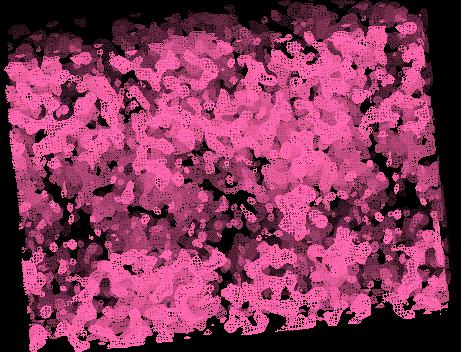
First it is necessary to display the entire map. Pick the tool X-AUTOFIT:X-BUILD/Options... Set the map radius to 40 Å. After completion of the contouring the map should cover most of the unit cell like this. If you turn on the coordinates using the Molecule Management Table, these should lie near the center of the displayed map. Turn off the coordinate display again.
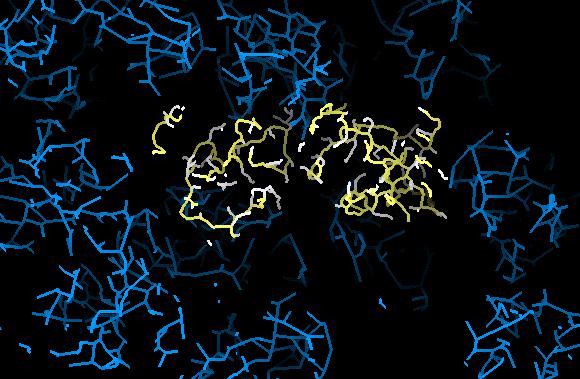
NOTE Note that you should NOT cause a recalculation of the bones during this editing session (use any pointer tool or bones on-off), as this will negate all the editing, and recalculate the bones in the volume of the map. After the mask has been calculated it is much easier to mask the bones not required.
To generate the mask, we will assume there is no coordinate information (otherwise it is possible to generate a mask directly from the coordinates). It is necessary for the bones to be turned on:
Using the tool X-AUTOFIT:X-BUILD/Bones.../Bones on-off, turn on the bones, and turn off the map with the Map Management Table.
Now make the bones easier to visualize. Select X-AUTOFIT:X-BUILD/Bones.../Smooth Bones, and turn off the side chain bones to reduce the information on display by picking X-AUTOFIT:X-BUILD Bones.../Side chain on-off.
Now to edit the bones, using the tool to automatically delete bones by volume. This tool deletes fragments that are smaller than a cutoff threshold defined by their size divided by the total bones volume. The working tool takes a few seconds. The message line indicates the progress of the calculation.
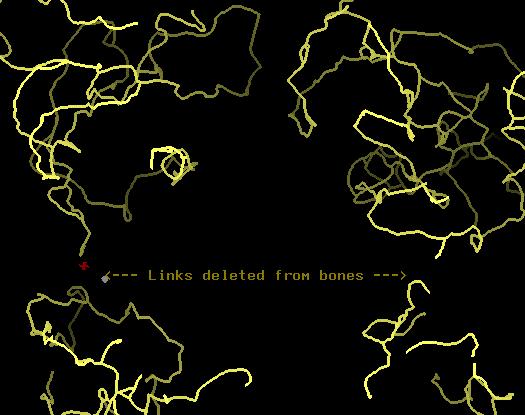
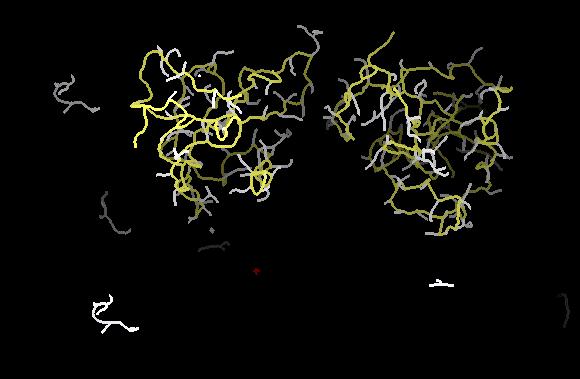
Initially, to get an idea of the automated deletion of the bones, you should pick the tool X-AUTOFIT:X-BUILD Bones... /Delete all fragments five times. You should see in the textport the report of a delete percentage. This indicates the percentage of the total bones deleted. After 5 deletions, any fragment less than 32% of the initial size will have been deleted. At this point you should see 2 large volumes of bones, each with a tail leading to small regions of bones. (If you turn on the molecule, you can see more clearly what is meant.) It is necessary to cut off these side fragments.
Pick the tool X-AUTOFIT:X-BUILD Bones... /Delete 1 section and pick a bones point on one of these links. The link disappear from the screen. Then repeat this for the link to the second fragment, as shown.
To delete the offending tails now, we will use the tool that deletes whole fragments. Note that this tool remains active until picked again. There is a short delay after each pick as the bones are analyzed. You should watch the message line and wait for the pick a bones point prompt after each pick.
Two picks are necessary to delete the two extra sections of bones. If you have not cut these off from the required volume of bones, then these will be deleted as well. If you delete a required part of the bones, you can use the tool X-AUTOFIT:X-BUILD Bones... /Undo last delete to restore it.
Now turn on the side chains again using X-AUTOFIT:X-BUILD Bones... /Side chains on/off. You will see some small sections of bones that remain, and need to be deleted before continuing. Use the tool X-AUTOFIT:X-BUILD Bones.../Delete fragments to move around and pick/delete each small section. (Remember to pick the tool again to abort this mode.) On completion of this process you should have just the bones that define the dimer.
NOTE To check the bones in a real case you can use this tool to show the bones symmetry : X-AUTOFIT:X-BUILD Bones.../Calc bones symmetry. This calculates the symmetry bones andwill display these as a reduced representation net of bones. These should NOT overlap the real bones after the completion of the editing.
Pick the tool X-AUTOFIT:X-BUILD Map Mask... /Calc. mask from bones. The progress of the calculation is shown on the message line, and on completion a net of white points indicate the mask. You should save this by picking X-AUTOFIT:X-BUILD/Map Mask.../Save Mask to file and giving the file a name.
To remove voids from within the mask select X-AUTOFIT:X-BUILD/Map Mask.../Check for voids. You may wish to edit the mask with the mask sphere pointer. If the graphics on your machine are not very powerful, it is recommended that you hide the bones using the Object Management Table and reduce the dot density of the mask by picking X-AUTOFIT:X-BUILD/Map Mask.../Decrease resolution. This will make it easier to manipulate the pointer and display. To remove the deep cavities into the mask, move the mask pointer over these and use the tool X-AUTOFIT:X-BUILD Map Mask.../Add Mask at pointer. This increases the number of inside points in the mask.
On completion of editing the mask, you should have a mask that forms the dimer molecular outline. Save it again.
This mask can now be used in subsequent sessions as a bounding volume for all calculations. The tool X-AUTOFIT:X-BUILD/ Bones.../Mask bones by mask will set up the bones to always be truncated so that they lie inside the mask. If this tool is used now, then the textport message indicates that there are no points outside the mask. This is because this mask has been generated by the bones, and so surrounds the bones anyway. To see the action, turn off the bones using the X-AUTOFIT:X-BUILD/Bones.../Bones on-off tool, then pick the tool again to turn the bones back on. The program indicates that some points lie outside the mask, and have been deleted.
Therefore any in subsequent session , read in a mask, then turn on the bones, then mask these using the mask. You should turn off the visibility of the mask (using the Object Management Table) in the subsequent analysis.
For the identification of the secondary structure you should have:
See the documentation to Q97 for a discussion on the use of various parameters for the analysis of the map using the functionality.
Now turn off the display of the mask using the Object Management Table.
It is not necessary to view the mask when the Mask bones by mask tool is active, as the program takes care to prevent the user building outside the mask. The hiding of the mask increases the speed of the next part of the calculation as the image display will update during the analysis.
To calculate the secondary structure of the molecule pick the tool X-AUTOFIT-X-BUILD/X-POWERFIT/Find sec. struct.
The calculation should take about 5 minutes (on an R4000) and you
should see the pattern recognition algorithm marking possible strand and
helix positions. Then the next stage of the calculation carries out a cluster
analysis, followed by directed refinement and finally an overlap analysis.
You should end up with 11 structure elements, depending on the mask quality.
The bones start value has been set to 1.1 sigma. In the mask shown previously,
you get 11 elements. The figure shown here
is of the vectors (white helix, and pink strand), on top of a C trace
of the final coordinates.
atoms (10 minutes)You should check that the vectors are correct by looking at the bones
(and map) closely when converting the vectors to C trace. To do this
pick the tool X-AUTOFIT-X-BUILD/X-POWERFIT/Vector -> CA Trace,
then select a vector.
Six secondary structure elements have been correctly recognized in this map. The algorithm tends to work better for larger maps where solvent flattening does not affect the ends of the strands. If you get the correct secondary structure, you should end up with a figure like this.
trace (45 minutes)This picture shows the result
of spending about 45 minutes building one domain using the Auto extend
CA auto-building tool on the X-POWERFIT menu and the
semi-automated commands on the CA Build... palette against
the final coordinates. It is hoped that for real structures you would take
a little more care, but this shows how quickly you can build C traces.
You could now try the same with the two other maps. With the DM map you will actually find that the algorithm does not work quite as well. This is because the algorithm has been designed to work better on maps that are not very good. The DM map is excellent, but is over-sharpened for this type of analysis. With the SIR map you will find only a couple of correct hits and several incorrect hits. This map is very poor and generally considered uninterpretable: you can decide for yourself. No other search methods have yet found conclusive secondary structure within this map.
The next stage in the model building is sequence assignment. At this stage in the building, this example is too easy because if you have built most of the structure there is little ambiguity in the sequence assignment (as long as there are no insertions and deletions).
This page last updated 15 July 1997.