
This chapter describes the basics of performing simple searches within the Conformational Search application. It is the third chapter to describe conformational search procedures. Read this chapter for specific information on setting up and running a conformational search. The chapter includes practice exercises for the following search methods:
The Conformational Search application enables the exploration of a molecular structure's conformational space. Torsion angles are modified to generate various conformations and each conformation is processed according to user-defined criteria. When two or more structures are under study, it is also possible to explore spatial orientations of one structure with respect to the other. There are three basic steps for defining a search procedure:
1. Identify geometric properties
3. Define the scope of the search
Files containing the conformations generated during a search procedure are assigned user-defined names. These files contain: coordinate data, identification tags for each conformation, and a potential energy for each conformation generated by the search procedure (optional).
Selecting Conformational Search in the Application menu calls the Conformational Search palette. This palette provides a set of tools to execute the steps listed above.
Selections from the QUANTA Geometry palette are also accessible from within Conformational Search. Other palettes provide logical grouping of selections based on the functions they perform.
It is possible to move directly from the Conformational Search palette to the Analysis application. Transferring to Analysis from Conformational Search removes the Conformational Search palette. Subsequent exiting from Analysis returns to Conformational Search and restores the appropriate palette.
Many palette tools are dimmed when the Conformational Search palette is first displayed. Dimmed tools represent unavailable choices based on the currently active tool or the current point within the procedural definition. Dimmed tools cannot be selected, providing a safeguard against making inappropriate selections. Dimmed tools are restored to an active status (bright) when usage is permitted.
The Grid Scan search explores conformational space by systematically varying torsion angles over a grid of equally spaced values to generate new conformations. Up to 10 torsion angles can be used in a given search. If more than 10 torsions are defined, a subset of 10 or fewer must be selected.
Separate palettes are provided for each step.
The following exercise completes the three search steps for search1.msf. The structure was generated in Chapter 2 of QUANTA Generating and Displaying Molecules.
Steps 1-5 of this exercise repeat steps taken to define torsions in an exercise in Chapter 3 of this book. If you have completed these steps already, go on to Step 6. After search setup procedures are established, the grid scan search for search1.msf takes 5-10 minutes to complete.
Display the File menu. Select the Open function. A File Librarian dialog box is displayed.
Select search1.msf from the scrolling list.
Select the Open button. The structure search1 is displayed in the viewing area.
2. Start Conformational Search.
Display the Applications menu. Select Conformational Search. The Conformational Search palette replaces the Modeling palette and the Geometry palette remains displayed.
The textport reports the following information about the displayed structure, search1.msf:
3. Display atom labels for all atoms. Display the Draw menu. Select Label Atoms.
From the pull-right menu that opens, select Selection Tools. The Label Atoms and Label Components and Utilities palettes are displayed.
From the Label Components and Utilities palette, select Atom Name, Residue ID, and Show Labels.
From the Label Atoms palette, select Include and All Atoms. A label containing the atom name is displayed for all atoms. These labels permits identification of the atoms composing the available torsions.
From the Label Atoms palette, select Finish. The Conformational Search palette is redisplayed
4. Define torsions in the displayed structure.
From the Conformational Search palette, select Torsions. The Torsions palette is displayed.
From the Torsions palette, select Define All Torsions. The command line displays:
Select List Torsions. The following torsion definitions are reported in the textport:
Actual atom names may differ, depending on the sequence in which bonds and atoms were placed when the structure was built.
From the Torsions palette, select Select Torsions. The Torsion Selection palette is displayed. Selected torsion bonds in the displayed structure are blue, and all other bonds are red.
Torsion Selection: INCLUDE on 6 Torsns SLCTD out of 6.
From the Torsion Selection palette, select Include and Select a Subset of Torsions. A dialog box is displayed offering options for the selection of one torsion from all torsions currently available.
Include
and Exclude all others
4 tor4(2) C2-C14-C15-C16
Select the OK button. The dialog box is cleared from the screen. The torsion named tor4(2) comprised of the bond between the carbons alpha and beta to the para ring carbon, is selected. This bond remains displayed in blue. All others bonds are red.
Torsion Selection: INCLUDE on 1 Torsns SLCTD out of 6
From the Torsion Selection palette, select Finish. The palette is no longer displayed. The search1 structure is redisplayed in the original colors. The message line reads:
From the Torsions palette, select Exit Torsions. The palette is removed from the screen. Defining torsions for the search procedure is completed.
6. Define the scope of the search
From the Conformational Search palette, select Setup Search. All of the search procedure selections become active.
Select Grid Scan. A dialog box is displayed permitting the entry of values that define the rotational range (initial and final torsion values) and the torsion angle increment within this range.
You can also specify torsion values as absolute or relative values.
From: 0.000
To: 330.000
Step Size: 30.000
Select the OK button. A dialog box is displayed, offering options for specifying how each conformation is processed.
CHARMm Minimization for each structure
Constrain Grid Torsion during Minimization
Display Structure
The second option in the list above constrains the torsion angles which the previous dialog box specified. This ensures they are not altered by the subsequent energy minimization in CHARMm. The program employs dihedral constraints in CHARMm to retain grid values for these torsions.
Select the OK button. Grid Scan remains checked and highlighted, indicating it is the selected search method. All other procedure selections are dimmed. Do Search is activated, indicating the appropriate conditions now exist for starting a search.
7. Setup minimization for conformations.
Since each conformation is to be minimized, establish CHARMm minimization specifications.
Display the CHARMm menu. Select Minimization Options. A dialog box containing the minimization setup options is displayed.
Number of Minimization Steps: 50
Coordinate Update Frequency: 5
Energy Gradient Tolerance: 0.010000
Energy Value Tolerance: 0.000000
Initial Step Size: 0.020000
Step Value Tolerance: 0.000000
Select the OK button. The dialog box is cleared from the screen. The new minimization conditions are established.
8. Start the grid scan search.
From the Conformational Search palette, select Do Search. A File Librarian dialog box is displayed.
Enter the name grid1 for the file to contain search results. The application automatically adds the extension .csr.
Tag prefix: search1.msf
Starting Tag Number: 1
Select the New button. The search procedure is started. As the search proceeds, each conformation is displayed in the viewing area and minimized before proceeding to the next conformation. Tags are displayed in the upper-left corner of the viewing area, identifying which conformation is currently displayed.
This search procedure takes 5-10 min. When the search is completed, the last conformation is displayed in the viewing area. The message line reads:
A second grid scan search, employing two torsion angles in the search1 structure is performed in the same manner as the first. The results, however, are much different when two torsions are used. After search setup procedures are established, the Grid Scan search takes 30 to 35 minutes.
1. Define torsions in the displayed structure.
Display the Conformational Search palette. Select Torsions. The Torsions palette is displayed.
Select Define all Torsion. Use Default Names is already selected. A dialog box is displayed, providing options to add or replace the current torsion definition.
Select the OK button. The message line reads:
The following torsion definitions are reported in the textport:
The torsions may have different designations in your system depending how the structure was generated.
2. Select two torsions for the search.
Display the Torsions palette. Select Select Torsions. The Torsion Selection palette supplements the display of the Torsions, Conformational Search, and Geometry palettes. Selected torsion bonds in the displayed structure are colored blue. All other bonds are colored red.
Torsion Selection: INCLUDE on 6 Torsns SLCTD out of 6
From the Torsion Selection palette, select Select a Subset of Torsions . A dialog box is displayed, permitting the selection of specific torsions from all torsions currently available.
Include
and Exclude all others
2 tor2(1) C3--C4--O9--H13
3 tor3(1) C4--C5--O11--H12
Select the OK button. The dialog box is cleared from the screen. The torsions named tor2(1) and tor3(1) are selected. The bonds remain displayed in blue (between C4 and O9, and C5 and O11). All other bonds are displayed in red.
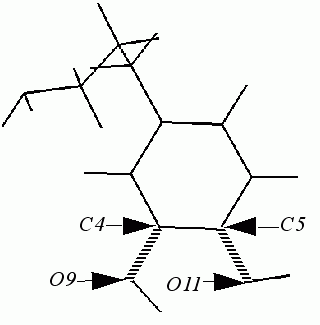
Torsion Selection: INCLUDE on 2 Torsns SLCTD out of 6.
From the Torsion Selection palette, select Finish. The palette is removed from the screen. The structure is redisplayed in the original colors. The message line reads:
From the Torsions palette, select Exit Torsions. The palette is removed from the screen. The definition of torsions for the search procedure is completed.
3. Select the Grid Scan search method and define specifications.
From the Conformational Search palette, select Setup Search. All of the search method tools become active.
Select Grid Scan. A dialog box is displayed, permitting the entry of an initial value, the final value, and the torsion angle increment for both torsions.
tor2(1) From: 0.00
To: 330
Step Size: 30.00
tor3(1) From: 0.00
To: 330
Step Size: 30.00
A dialog box is displayed, offering options to specify how each conformation is processed.
CHARMm Minimization for each structure
Constrain Grid Torsion during Minimization
Display Structure
The following information is reported in the textport:
Grid Scan remains checked and highlighted, indicating this is the defined search method. All other method selections are dimmed. Do Search is activated, indicating the appropriate conditions now exist for starting a search.
4. Setup minimization for conformations.
Display the CHARMm menu. Select Minimization Options. A dialog box containing the minimization setup options is displayed.
Number of Minimization Steps: 50
Coordinate Update Frequency: 5
Energy Gradient Tolerance: 0.010000
Energy Value Tolerance: 0.000000
Initial Step Size: 0.020000
Step Value Tolerance: 0.000000
Select the OK button. The dialog box is cleared from the screen. The new minimization specifications are established.
5. Start the Grid Scan search.
From the Conformational Search palette, select Do Search. A File Librarian dialog box is displayed. Enter the name grid2 for the file to contain search results.
Tag prefix: search1.msf
Starting Tag Number: 1
Select the New button. The search process is started. This search procedure takes about 30 minutes to complete. When the search is completed, the last conformation is displayed in the viewing area.
6. Exit Conformational Search.
From the Conformational Search palette, select Exit Conformational Search. The Conformational Search palette is removed and the Modeling palette is displayed.
7. Reject changes to the structure.
From the Modeling palette, select Reject Changes. Search1 returns to its original conformation.
The Random Sampling procedure randomly changes all defined torsion angles in a structure using a predefined range. This range (angular window) specifies the maximum angle that torsions may vary during each perturbation in the search procedure and generates the user-defined number of conformations. Torsion angle modifications can be performed using a starting structure or a previously obtained conformation.
As the search progresses, CHARMm energy and/or CHARMm minimization can be calculated for each randomly altered conformation. When the search is complete, all conformations are saved to a search file and given a user-defined name.
Complete the following exercise to become familiar with the steps in a Random Sampling search. After search setup procedures are established, the random sampling search for the search1 structure takes five to ten minutes to complete.
1. Display the original conformation of the structure.
Open search1.msf. The original conformation of the structure replaces the conformation displayed after exiting conformational search in the previous exercise.
2. Start Conformational Search.
Display the Applications menu. Select Conformational Search. The Search palette replaces the Modeling palette and supplements the display of the Geometry palette. The textport reports the following information about the displayed structure:
3. Define torsions in the displayed structure.
From the Conformational Search palette, select Torsions. From the Torsions palette, select Define All Torsions. The message line reads:
The following torsion definitions are reported in the textport:
The actual atoms that define your torsions may differ, depending on the sequence in which bonds and atoms were placed when the structure was built.
From the Torsions palette, select Exit Torsions. The Torsions palette is removed from the screen. The torsions for the search procedure are now defined.
4. Select a search method and define specifications.
From the Conformational Search palette, select Setup Search. All of the search procedure selections become active.
From the Conformational Search palette, select Random Sampling. A dialog box is displayed, permitting the entry of setup specifications for the search.
Number of Samples: 25
Torsion Angle Window: 60
Minimize Each Structure
Cumulative Random Modifications
Display Each Structure
Select the OK button. Random Sampling in the Conformational Search palette remains checked and highlighted, indicating it is the defined search method. All other procedure selections are dimmed. Do Search is activated, indicating the appropriate conditions now exist for starting a search.
5. Setup minimization for conformations.
Display the CHARMm menu. Select Minimization Options. A dialog box containing the minimization setup options is displayed.
Number of Minimization Steps: 50
Coordinate Update Frequency: 5
Energy Gradient Tolerance: 0.010000
Energy Value Tolerance: 0.000000
Initial Step Size: 0.020000
Step Value Tolerance: 0.000000
Select the OK button. The dialog box is cleared from the screen. The new minimization specifications are established.
6. Start the random sampling search.
From the Conformational Search palette, select Do Search.
A File Librarian dialog box is displayed. Enter the name random for the file to contain search results. The extension .csr will automatically be added.
Tag prefix: search1.msf
Starting Tag Number: 1
Select the New button. The search procedure is started. As the search proceeds, each conformation is displayed in the viewing area and minimized before proceeding to the next conformation. Tags are displayed in the upper left corner of the viewing area (search_msf:1), identifying which conformation is currently displayed.
This search procedure takes 5-10 minutes. When the search is completed, the last conformation is displayed in the viewing area. The message line displays:
7. Exit Conformational Search.
From the Conformational Search palette, select Exit Conformational Search. The Conformational Search palette is removed from the screen and the Modeling palette is displayed.
The Boltzmann Jump search explores conformational space for energy minima, generating the user-defined number of conformations through random perturbation of torsion angles. Upward jumps in energy are permitted.
Starting with a minimized structure, a random perturbation is carried out within a predefined range, specifying how much torsion angles may vary for each conformation during the search. If the resulting conformation is of a lower energy, the conformation is selected. If the perturbed conformation is of a higher energy, a stochastic decision is made to select or reject the new conformation.
Even after a conformation is selected, random perturbation continues until the RMS differences in torsion angles between the selected conformation and the starting minimum energy conformation exceeds a user-defined value. This causes the perturbation sequence to terminate, and a CHARMm energy minimization to be performed on the conformation.
Search procedures can also be performed on cyclic structures. Cyclization algorithms work transparently during a search procedure to ensure that the cyclic structure is preserved during torsional manipulation.
When you select Boltzmann Jump from the Conformational Search palette, a dialog box is displayed, offering options to set up the specifications for the search.
The exercise that follows uses the cyclic structure CCK7 built in Chapter 4 of QUANTA Generating and Displaying Molecules. The file CCK7.msf should be displayed and active in the viewing area. After search setup procedures are established, the Boltzmann Jump search takes 30-35 minutes to complete.
1. Start Conformational Search.
From the Applications menu. Select Conformational Search. The Conformational Search palette replaces the Modeling palette and supplements the display of the Geometry palette. The textport reports the following information about the displayed structure (CCK7.msf):
2. Select the torsion template to define backbone torsions.
From the Conformational Search palette, select Torsions. The Torsions palette displaces the Conformational Search palette and supplements the display of the Geometry palette.
From the Torsions palette, select Read Torsion Template. A File Librarian dialog box is displayed.
Select the Open button. The template is applied to the structure and a list of torsions is displayed in the textport.
3. Define elastic bonds for cyclization.
From the Torsions palette, select Define Peptide Backbone Torsions. An elastic bond is automatically defined.
From the Torsions palette, select Exit Torsions. The palette is removed from the screen.
4. Select Boltzmann Jump and define specifications.
From the Conformational Search palette, select Setup Search. All of the search procedure selections become active.
Select Boltzmann Jump. A dialog box is displayed, permitting the entry of specifications for the search.
Number of Samples: 20
Torsion Angle Window: 10.00
Temperature (Kelvin): 2000.00
If the Boltzmann Jump success rate is too low, you can reduce the Torsion Angle Window and increase the temperature.
Display Each Structure
Save Minimized Structures Only
Select the OK button. The dialog box is cleared from the screen. Boltzmann Jump remains checked and highlighted in the Conformational Search palette. All other procedure tools are dimmed.
5. Setup minimization for conformations.
Display the CHARMm menu. Select Minimization Options. A dialog box containing the minimization setup options, is displayed.
Number of Minimization Steps: 50
Coordinate Update Frequency: 5
Energy Gradient Tolerance: 0.010000
Energy Value Tolerance: 0.000000
Initial Step Size: 0.020000
Step Value Tolerance: 0.000000
Select the OK button. The dialog box is cleared from the screen. The new minimization specifications are established.
6. Start the Boltzmann Jump search.
From the Conformational Search palette, select Do Search. A File Librarian dialog box is displayed.
Enter the name jump for the file to contain search results. Select the Save button. A dialog box is displayed, enabling the definition of tag specifications.
Tag prefix: CCK7.msf
Starting Tag Number: 1
Select the OK button. The search procedure is started. This search procedure takes 30-35 minutes. When the search is completed, the last conformation may be displayed off an edge of the viewing area. Select Reset View from the Dial Emulator to bring the entire structure into view.
7. Exit Conformational Search.
Select Exit Conformational Search. The Conformational Search palette is removed from the screen and the Modeling palette is displayed.
8. Reject changes made to CCK7.msf as a result of the search.
From the Modeling palette, select Reject Changes. The changes made to CCK7.msf are not saved in the MSF. The original coordinates (the coordinates saved after minimization) of CCK7.msf are redisplayed in the viewing area.
The Peptide Flip search randomly locates low-energy conformations in cyclic pipettes by rotating peptide units about pseudo-bonds connecting alpha carbon atoms. Cyclization algorithms built into the search procedure work transparently to ensure a cyclic structure is preserved during torsional manipulation. This search procedure uses two types of rotations:
The segment rotation creates an initial conformation by rotating a sequence of connected peptides (a segment) about the pseudo-bond joining the alpha carbon atoms at each end of the peptide sequence. A user-defined number of peptide flips is then performed on a peptide unit contained within the defined segment.
A random conformation for the Peptide Flip is selected after a series of random rotations and the lowest energy structure resulting from this random sampling is submitted to CHARMm for minimization.
A Peptide Flip Search can be set up so several segment rotations can be performed. Each segment rotation can have its own series of nested peptide flips. Once the search is completed, all resulting conformations are stored in a search file (.csr).
The exercise that follows uses the cyclic structure CCK7 built in Chapter 4 of QUANTA Generating and Displaying Molecules. If you are progressing through this chapter, the structure CCK7 should be open and displayed in the viewing area. After search setup procedures are established, the Peptide Flip search takes 30-35 minutes to complete.
1. Start Conformational Search.
Display the Applications menu. Select Conformational Search. The Conformational Search palette replaces the Modeling palette and supplements the display of the Geometry palette. The textport reports the following information about the displayed structure:
2. Define the backbone torsions.
From the Conformational Search palette, select Torsions. The Torsions palette is displayed.
Select Define Peptide Backbone Torsions. The message line reads:
From the Conformational Search palette, select Exit Torsions. The Torsions palette is removed from the screen. The definition of backbone torsions for the search procedure is completed.
3. Select Peptide Flip search and define specifications.
From the Conformational Search palette, select Setup Search. All the search method selections become active.
Select Peptide Flip. A dialog box is displayed, permitting setup of specifications of a search that performs only peptide flips (no segment rotation).
Select the option for the Rotation Angle/Window:
Number of Energy Minimum Conformations per Segment
Rotation: 20
Number of Trials Flips Prior to Minimization: 5
Peptide Flip Angle/Window (degrees): 180.0
Number of Peptide Units involved in a flip: 2
Select the OK button. The dialog box is cleared from the screen. Peptide Flip remains checked and highlighted. All other method selections are dimmed. Do Search is activated.
4. Setup minimization for CCK7.msf.
Display the CHARMm menu. Select Minimization Options. A dialog box containing the minimization setup options is displayed.
Number of Minimization Steps: 100
Coordinate Update Frequency: 5
Energy Gradient Tolerance: 0.0100000
Energy Value Tolerance: 0.000000
Initial Step Size: 0.020000
Step Value Tolerance: 0.000000
Select the OK button. The dialog box is cleared from the screen. The new minimization parameters are established.
5. Start the Peptide Flip search.
From the Conformational Search palette, select Do Search. A File Librarian dialog box is displayed.
Enter the name flip for the file to contain search results.
Tag prefix: CCK7.msf
Starting Tag Number: 1
Select the New button. The search procedure is started. This search procedure takes 30-35 minutes to complete. When the search is completed, the last conformation is displayed in the viewing area. The message line reads:
6. Exit Conformational Search.
Select Exit Conformational Search. The Conformational Search palette is removed from the screen and the Modeling palette is displayed.
7. Reject changes to CCK7.msf as a result of the search.
From the Modeling palette, select Reject Changes. The changes made to CCK7.msf are not saved in the MSF. The coordinates saved after minimization of CCK7.msf are redisplayed in the viewing area.
The Conformational Search application enables the exploration of a molecular structure's conformational space. Torsion angles are modified to generate various conformations and each conformation is processed according to user-defined criteria. When two or more structures are under study, it is also possible to explore spatial orientations of one structure with respect to the other.
Selecting Conformational Search in the Application menu calls the Conformational Search palette. Selections from the QUANTA Geometry palette are also accessible from within Conformational Search. Other palettes provide logical grouping of selections based on the functions they perform.
This chapter includes practice exercises for the following search methods: Grid Scan, Random Sampling, Boltzmann Jump, and Peptide Flip.
The Grid Scan search explores conformational space by systematically varying torsion angles over a grid of equally spaced values to generate new conformations. Up to 10 torsion angles can be used in a given search. If more than 10 torsions are defined, a subset of 10 or fewer must be selected.
To perform a Grid Scan search:
The Random Sampling procedure randomly changes all defined torsion angles in a structure using a predefined range. This range (angular window) specifies the maximum angle that torsions may vary during each perturbation in the search procedure and generates the user-defined number of conformations. Torsion angle modifications can be performed using a starting structure or a previously obtained conformation.
The Boltzmann Jump search explores conformational space for energy minima, generating the user-defined number of conformations through random perturbation of torsion angles. Upward jumps in energy are permitted.
Starting with a minimized structure, a random perturbation is carried out within a predefined range, specifying how much torsion angles may vary for each conformation during the search. If the resulting conformation is of a lower energy, the conformation is selected. If the perturbed conformation is of a higher energy, a stochastic decision is made to select or reject the new conformation.
Even after a conformation is selected, random perturbation continues until the rms differences in torsion angles between the selected conformation and the starting minimum energy conformation exceeds a user-defined value. This causes the perturbation sequence to terminate, and a CHARMm energy minimization to be performed on the conformation.
Search procedures can also be performed on cyclic structures. Cyclization algorithms work transparently during a search procedure to ensure that the cyclic structure is preserved during torsional manipulation.
The Peptide Flip search randomly locates low energy conformations in cyclic peptides by rotating peptide units about pseudo-bonds connecting alpha carbon atoms. Cyclization algorithms, built into the search procedure work transparently to ensure a cyclic structure is preserved during torsional manipulation. This search procedure uses two types of rotations: segment rotation and peptide flip.
Segment rotation creates an initial conformation by rotating a sequence of connected peptides (a segment) about the pseudo-bond joining the alpha carbon atoms at each end of the peptide sequence. A number of peptide flips is then performed on a peptide unit contained within the defined segment.
A random conformation for the peptide flip is selected after a series of random rotations and the lowest energy structure, resulting from this random sampling, is submitted to CHARMm for minimization.